



Overview
Fields = Add metadata to any node.
Use fields to describe your data. For a Person, you may add fields (prefixed with > ; this also creates a field in Tana Outliner) like Name, Number, Email, Address, Social media, all of which helps organize information concerning that person. One way to check if a field is right, is to think "has a" when adding fields. A person has an Email. A task has a Due date. A movie has a Release date.
Fields are like the columns of a database. Every node is a database entry, and the fields are consistent information about that node. You'll see this when you use our Table view.
Fields can be added to any node but even better is using our Supertags to create a template of fields you want applied every time you record a new Person, Task, or Movie. See Supertags for more.
Fields help you resurface, sort, group and filter your information. Find all your Idea nodes that have Topic: Architecture. Filter Movie nodes by Director: Wes Anderson. Group Book nodes by all Genres. Tana Outliner has many ways of helping you surface just the right segment of information you need so you have a good overview, can make better decisions, and ultimately feel in control over the things you care about.
Basics
- There are two main components of a field: the field definition and the field value. The field definition includes the name and type of field, as well as its configuration. The field value is the actual value of the field, which can be manually input or automatically initialized when applying a supertag.
- Other than being used to record metadata attached to nodes, fields are also used in defining the query for search nodes to narrow down searches by specific field values, such as finding all Meeting nodes where Attendees include the value "Jane Doe". Fields can also be searched directly by adding the field and the system field value SET, or by adding the field definition through
@[field name]. - Fields show up differently depending on how the nodes they belong to are viewed. In Outline and navigation views, fields are only visible when the node is expanded, but can be added to Display in view options. In Table view, fields appear as columns. See Views for more info on how to use fields in each view.
- To configure a field, press on its icon to open a side panel with all field configurations.
Creating a field
Creating a field anywhere is simple:
- Stand on an empty line
- Type
>to create a new field - Give the field a name, or select from existing ones
- Hit tab to fill in its value
- To further configure the field, click on the field icon or use the shortcut Cmd+KCtrl+K and select "Configure Field".
When in the Supertag configuration, fields can also be created by using the + Create Field button or by typing > as described above.
Deleting a field
Before you delete a field, consider whether it has been applied to any nodes or supertags. In the field configuration panel, scroll down and see the stats on how many nodes and supertags it’s been applied to.
- If you have used it on 0 nodes/supertags, it’s safe to just delete the field. If you have used it on 1 or more nodes/supertags, consider finding and untagging them before deleting, or if it’s being replaced by another field, merging the old field with the new field.
- When you delete a field that is applied to other nodes, these field will show a trash can icon. This follows our principles about deleting Nodes, Supertags, and Fields that have references elsewhere, which states that Tana Outliner will never delete data that is indirectly associated with another element that you delete.
To delete a field:
- Option 1: Go to Field configuration panel. At the bottom there’s an action to
Deletethe field. - Option 2: Find the original Field definition and delete it.
Pinned fields
Pinned fields are fields marked as important dimensions for your information. They indicate which fields you want to use most frequently for filtering, sorting, grouping, and displaying information.
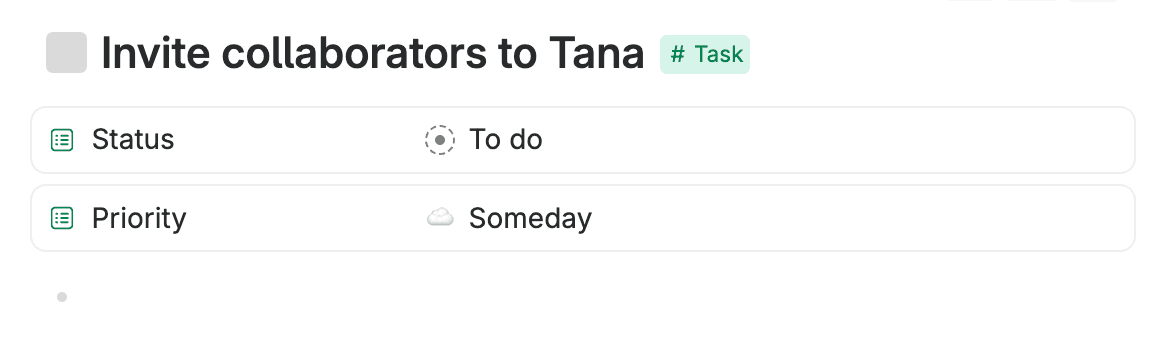
- Pinned fields always show on top in supertag instances and are displayed with a border line around them to distinguish them from regular fields.
- Pinned fields are grouped above the other fields when you open
Add filter, so the ones you filter by most often are the first you see. In the toolbar itself a field appears only while it is being filtered on, whether or not it is pinned, and it disappears again when you remove the filter. - If you have nodes from multiple supertags in a view, and those supertags each have pinned fields configured, all pinned fields from all represented supertags will show.
Configuring pinned fields
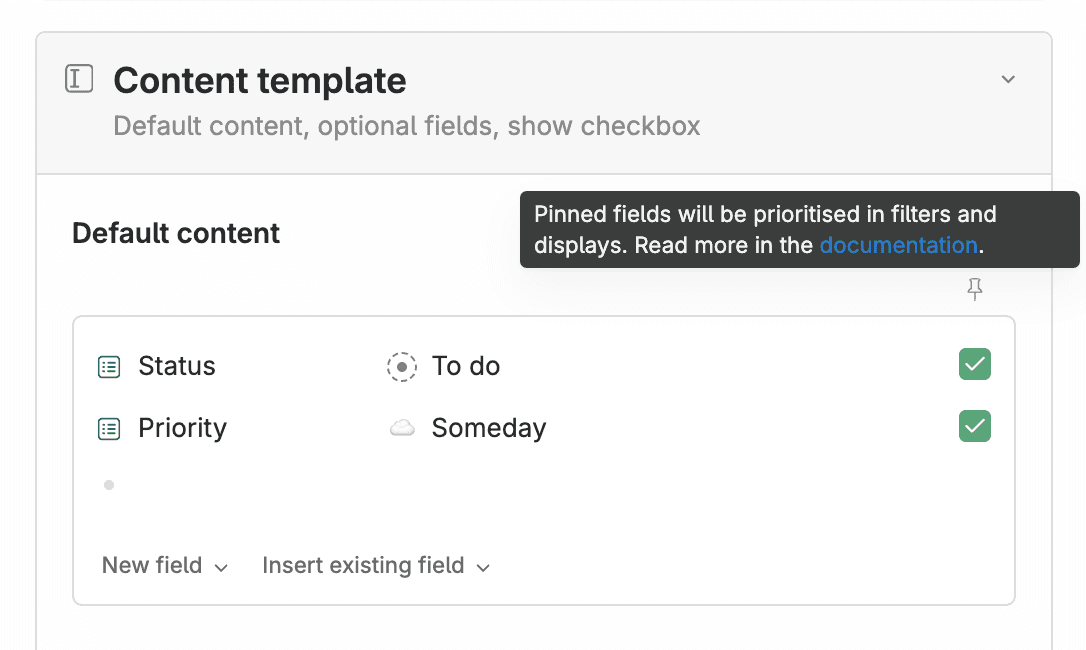
Pinned fields are configured in the Supertag configuration panel. See Supertags for more information on how to mark fields as pinned in your supertag templates.
Field configuration
To open the config panel:
- Option 1: On the field you want to configure, press on the field icon
- Option 2: Go via command line and press Cmd+KCtrl+K > Configure field
Field types
There are nine field types in Tana Outliner:
Data Validation: Based on their type, Tana Outliner will validate their contents. There are no consequences for storing information that doesn't conform with the validation rules, except for the warning that will appear in the field itself.
Plain field type
Plain is the most flexible type of field. It acts just like any other place in Tana Outliner where you can write anything. Ideal for data that is unlikely to be repeated (e.g., Bug description) or does not need data validation (Options, Dates, Emails, URLs, etc.).
- Auto-initialize
- Required
- Hide field
- AI-enhanced field
- Used in
- Delete
- Commands (in Advanced)
- Page size (in Advanced)
Options field type
Options let you choose from a preset of options you can select from in a dropdown menu. The presets can be defined beforehand, or auto-collected as new values are added.
- Pre-determined Options: Define options directly in the field configuration. Each node becomes an option and can be reference nodes. Nested nodes are not visible.
- Sources of Options: Pull in one or more nodes whose child nodes you want to populate the options list. Nodes can be created straight in the field configuration, added as a Reference to a list of static nodes, or a custom Search node.
- Auto-collect Values: Turned on by default on this field type. It automatically adds new values to the option list to make it easy to reuse values.
- Auto-initialize
- Required
- Hide field
- AI-enhanced field
- Used in
- Delete
- Commands (in Advanced)
- Page size (in Advanced)
- Field has semantic function: See Semantic Function (coming soon)
Options from supertag field type
(Name updated from "Instance")
Options from supertag creates a list based on nodes with a chosen supertag. Writing in a new value will prompt Tana Outliner to suggest that it be tagged with the same supertag.
- Supertag: The chosen supertag will be suggested for new values. Nodes with this supertag will become available as options.
- Auto-initialize
- Required
- Hide field
- AI-enhanced field
- Used in
- Delete
- Commands (in Advanced)
- Page size (in Advanced)
- Field has semantic function: See Semantic Function (coming soon)
Date field type
Date fields accept Tana Outliner dates that link to the Day node. Press space or use @ to enter a date. Click on the date to change it or right-click for options like Go to day node and Open day node in new panel.
- Auto-initialize
- Required
- Hide field
- AI-enhanced field
- Used in
- Delete
- Commands (in Advanced)
- Page size (in Advanced)
Number field type
Number fields accept numbers only. This enables calculations in table view and allows setting max. or min. values of digits.
- Minimum value: Define the lowest value of the validation range
- Maximum value: Define the highest value of the validation range
- Auto-initialize
- Required
- Hide field
- AI-enhanced field
- Used in
- Delete
- Commands (in Advanced)
- Page size (in Advanced)
Tana Outliner user field type
Note: This field changed names from User to Tana Outliner user in Week 7 / 2024)
Tana Outliner user fields prompt you to put in a user of the workspace with @, like @Olav Sindre Kriken in the Tana Outliner workspace.
- Auto-initialize
- Required
- Hide field
- AI-enhanced field
- Used in
- Delete
- Commands (in Advanced)
- Page size (in Advanced)
URL field type
URL fields store URLs/external links.
- Auto-initialize
- Required
- Hide field
- AI-enhanced field
- Used in
- Delete
- Commands (in Advanced)
- Page size (in Advanced)
Email field type
Email fields store email addresses.
- Auto-initialize
- Required
- Hide field
- AI-enhanced field
- Used in
- Delete
- Commands (in Advanced)
- Page size (in Advanced)
Checkbox field type
Checkbox fields show the field value as a checkbox toggle instead of a field you can write in. They output Yes/No values.
- Auto-initialize
- Hide field
- AI-enhanced field
- Used in
- Delete
- Commands (in Advanced)
- Page size (in Advanced)
Auto-initialize
A field setting that specifies how their content should be autofilled when a supertag is added to a node. Auto-initialization allows fields to be filled out based on the context of their creation - when they were created, where in the graph they were created, who created them, and so on. This is different from setting default values to fields in the supertag config panel, which are static.
Good to know:
- Initialization expressions are convenience functions, but are not live updating. So they won't change any prior field values from before you created the initialization functions, and you can change them after Tana Outliner fills a field if they need a manual touch.
- This is only triggered for fields that are part of a Supertag template. Auto-initialize will not work for fields that you use otherwise.
- Initialization is only triggered when a node gets the supertag applied to it. If the supertag gets updated with a field with initialization switched on, and the supertag was already applied to nodes, these nodes will only see the field added without any content initialized in it.
- Moving a node doesn't re-trigger initialization. If you drag an existing node into a new parent, its auto-initialized fields won't update to reflect the new context. To work around this, you can create a command node using Insert Tana Paste that reads the ancestor field value and writes it back — effectively re-inheriting the field on demand.
(From the archive: Stian's original demo (October 2022) on how Auto-initialization works. May have outdated info.)
Auto-initialize to value from ancestor with this field
Available on all fields. Copies the field values from the identical field on a node earlier in the tree.
- Example 1: You could have a Quote tag with an Author field, and it could automatically initialize with the value from the Author field of the Book that it is nested underneath.
- Example 2: You could have a "Related Project" field for your tasks, and then any nested subtasks would automatically have the same related project.
Auto-initialize to ancestor with this supertag
Only available on Options from supertag fields. Grabs a reference to the first node with this tag that it can find earlier in the tree.
- Example: You could have a Quote tag with a Source field, which is an instance of Source. If you tag a Quote nested underneath a Source node, this function would auto-populate the field accordingly.
Auto-initialize to random node with this supertag
Only available on Options from supertag fields. Grabs a reference to one or more random nodes with this supertag.
- Example: You could have Journaling prompt and have three show up in a "Today's Prompts" field in your Journal nodes.
Auto-initialize to current date
Only available on Date fields. Adds today's date to the field.
- Example: You tag your workout logs and want to record the day you logged it.
Auto-initialize to date of ancestor day node
Only available on Date fields. Adds the date that corresponds to an ancestor day node that a node with this field would be owned by.
- Example: In your daily node for next Tuesday, you tag a meeting. A date field with this initialization expression would be set to next Tuesday.
Auto-initialize to current user
Sets the value as the user who triggered the creation of the field.
Note: Auto-initialize to current user is a bit of a stub and there's not much you can do with this information currently. It will be picked up again for development once we start focusing on collaboration and teams.
Required
If switched on, will give a warning when field has no value. The warning is visual only and has no consequence.
Hide field
Minimizes the field when part of a supertag.
- Never (default): Field is never hidden
- When empty: Field is hidden when it has no value
- When not empty: Field is hidden when it has a value
- When value is default: Field is hidden when populated with template value from supertag
- Always: Field is always hidden
Audio-enabled field
When enabled, you will see a button wherever this field is used, which will let you use realtime transcription to fill in the field.
You can optionally configure a command to run when the transcription is done.
AI instructions
Plain text instructions for the AI when filling this field from voice memo processing or the autofill command.
AI-enhanced field
Adds optional AI assistance for filling in this field, based on the name, description and contents of the parent node.
Used in
- [number of] nodes: indicates the number of nodes where this field is used. Clicking this will open a new search for all nodes with this field.
- [number of] supertags: indicates the number of supertags that use this field in its template. Clicking this will expand the list of supertags.
Delete
You can delete the field from here.
Make it discoverable
Old: Move to Schema
Question: Should you move a field to the schema?
The place you create a field becomes the primary instance of this field which carries the field definition. This can be anywhere in the graph, including inside Supertag configurations.
If you delete the field definition or its owner, and you used the field in other places, they will now appear with a trash icon alongside the name. This is intentional to prevent data from being unintentionally deleted.
Tana Outliner Template consideration: Sometimes you want the fields to live in the supertag they were created in, so if you clone the supertag definition, it clones all the fields as well. If the fields were referenced, they would remain a reference in the cloned version, which is often not desirable.
But for most situations, to better preserve the fields you create it's recommended to move them to the Schema. Also, field definitions owned by the schema have priority when searching for fields.
Commands (in Advanced)
Adding one or more commands here will add buttons to the field that will trigger the command upon being pressed. See Commands for how to create and configure commands.
Page size (in Advanced)
By default, a list of nodes will start to paginate at 100 items. Here you can configure another maximum number before nodes get put on the next page.
Field has semantic function (in Advanced)
Shows for Options and Options from supertag field types.
Semantics give meaning to the relationships between nodes. Supertags already express "is a" relationships and fields express "has a" relationships; a semantic function adds an explicit relationship on top. Today the one available function is Part of, covered next.
Part of
Reach for Part of when you have a fixed breakdown, like a place, an org chart, or a product's components, and you want to file things at the most specific level while still pulling them up at any level above.
It arranges nodes into a strict tree, so a single search can return everything beneath any node in that tree, however deep it sits.
You don't need Part of for everyday structure. Plain nesting and ordinary fields cover most cases. It earns its place when you want recursive retrieval: ask for everything that belongs to Europe and get back every country and city beneath it.
A couple of things to know first:
- One parent per node. Each node is part of exactly one other node, so the structure stays a clean tree. Something that belongs to two parents, like a feature shared by two areas, is not a valid Part of relationship; use an ordinary reference field for that.
- The breadcrumb shows where a node sits. A breadcrumb at the top of each node traces its part-of chain, and you can click any node in it to jump there.
Set up a Part of field
- Tag the things in your hierarchy. For a geography tree you might tag Europe, Norway, and Oslo with
#place, or use a tag per level like#continent,#country, and#city. - Create a field, for example Part of location. Set its Field type to Options from supertag and point it at that tag, so your tagged nodes become the available values.
- Open Advanced, toggle on Field has semantic function, and choose Part of.

Connect nodes into a hierarchy
Add the field to each node and set its value to the node one level up:
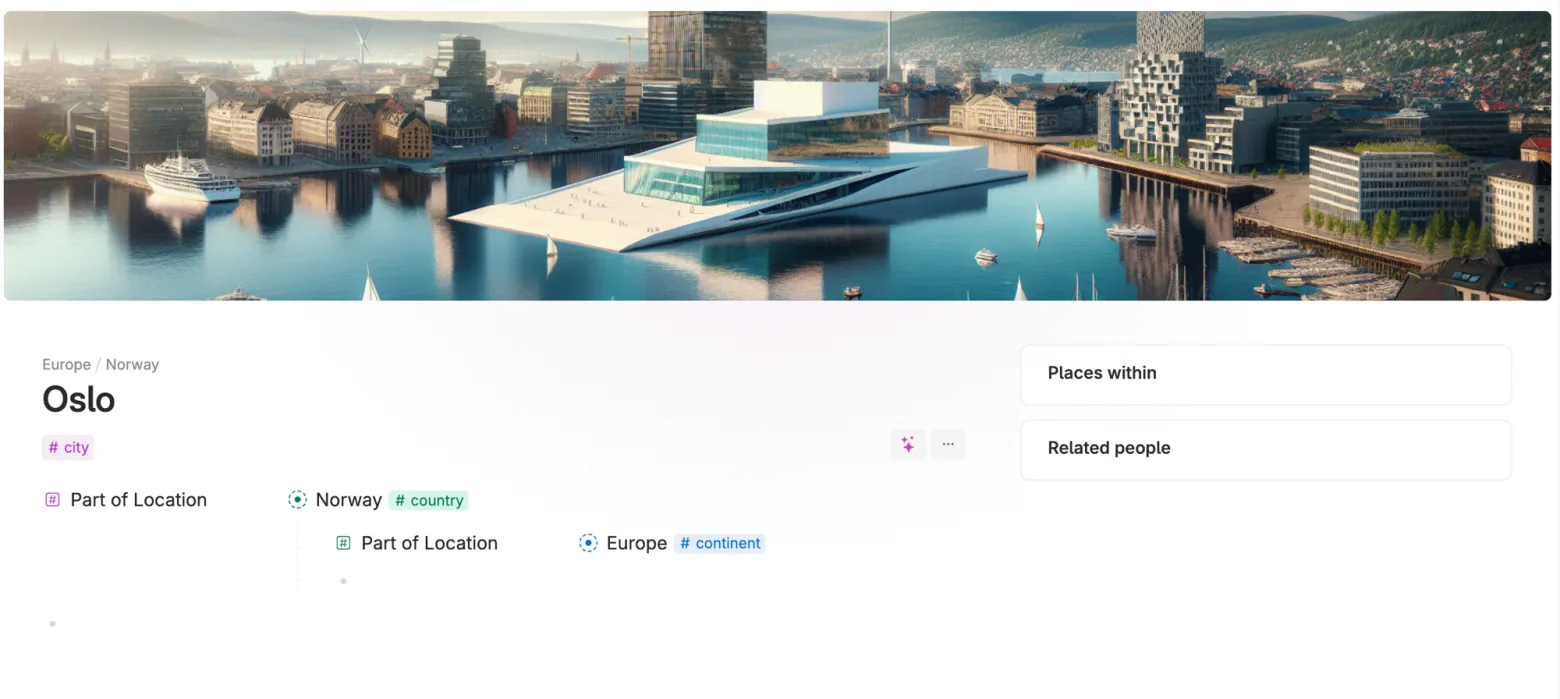
- On Oslo, set Part of location to Norway.
- On Norway, set Part of location to Europe.
Repeat up the chain for as many levels as you need. Each node's breadcrumb and Part of location field then reflect the chain you have built:
Find everything under a node
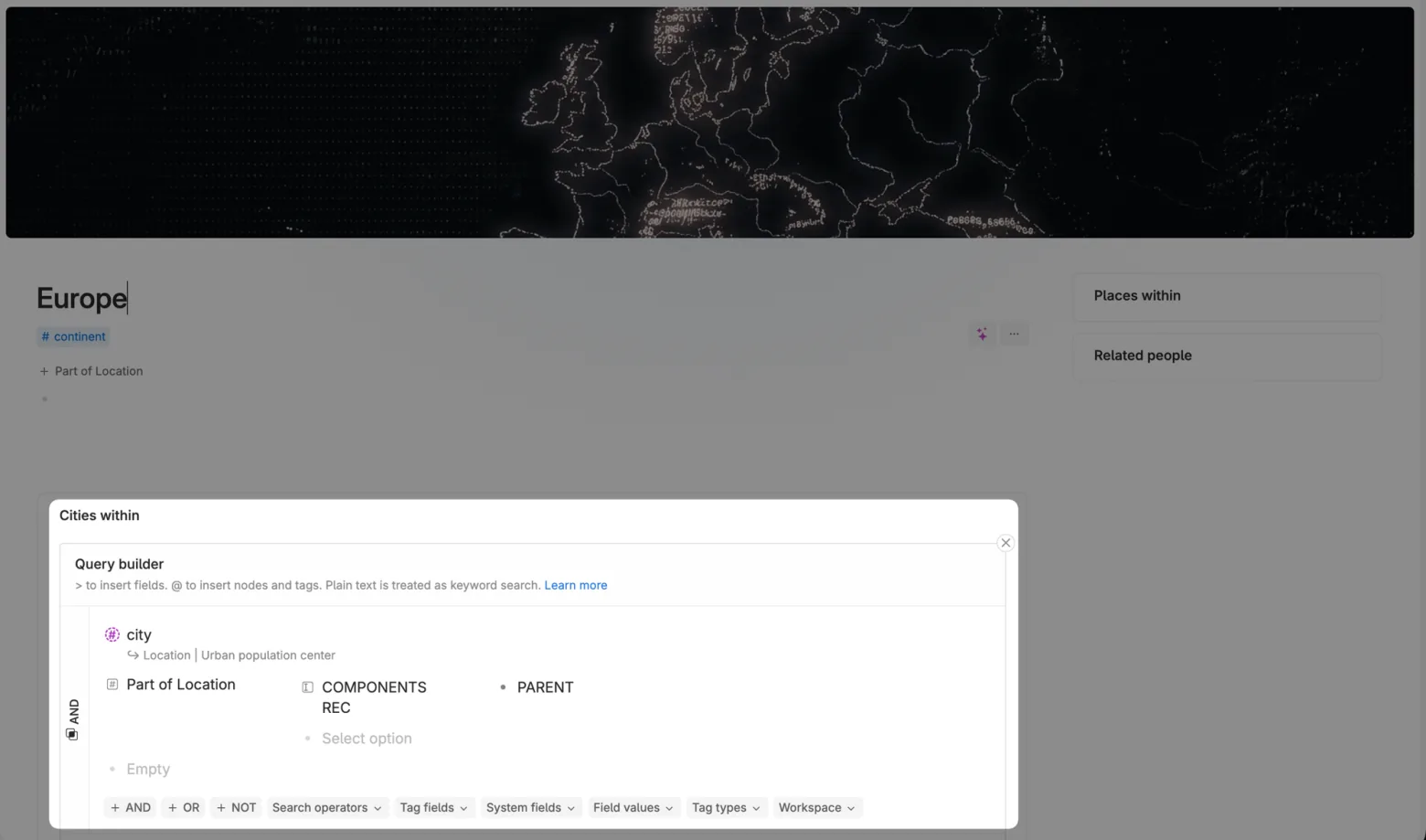
COMPONENTS REC (components, recursively) is the search operator that reads a part-of tree. Use it in one of two ways.
To list the members of the tree, query the Part of field with COMPONENTS REC and the top node. For example, Part of location: COMPONENTS REC Europe returns every place that is part of Europe at any depth.
To list records attached to the tree, point a separate field at the tree and query that instead. Keep the two roles apart:
- a definition field with the Part of semantic function builds the tree (the steps above), and
- a use field on another supertag, an ordinary Options from supertag field with semantic function off, references nodes in the tree.
For example, an #inventory record has a Related part field pointing into your part-of tree. Searching #inventory where Related part: COMPONENTS REC Engine returns the inventory for every component under the engine. The Tana Outliner team uses the same shape to file feature requests against the smallest part of the product and still surface them when reviewing any larger area.
Keep the tree small
COMPONENTS REC walks the whole tree on every search, so it slows down as the tree grows, and it is still experimental.
- Good fit: a tree that is small and slow-growing, like a region, an org chart, or a product map.
- Poor fit: fast-growing working data, like Projects with their Tasks, or every paragraph of a book under its chapter.
Records attached to the tree through a use field can still grow freely, since the search only walks the small tree. Very large result sets are also subject to the search result limit.
Examples of common Part of hierarchies
Each of these shares one trait: every part has a single, undisputed parent.
- Geography (continent > country > city)
- Budgets (company budget > department budget > project budget)
- Organizational structure (corporation > division > department)
- Scientific classification (plant kingdom > ericaceae family > blueberries)
- Addresses (Canada > Ontario > Toronto)
System fields
Tana Outliner has several different types of system fields.
Calculated system fields: Every node in Tana Outliner has calculated properties stored in these fields. To see a table of them, go here.
System-defined fields: Some fields are defined on the global level.
- Date field: When dragging nodes onto a calendar view, Tana Outliner adds a field to the nodes to store the date/time information.
- Due date field: More on that here
Fields in node titles
To use field values or system attributes in node titles, see Build title from fields.
Field definition
The field definition is a special node that stores the settings of a field.
A field definition (1) versus a field (2) looks like this:
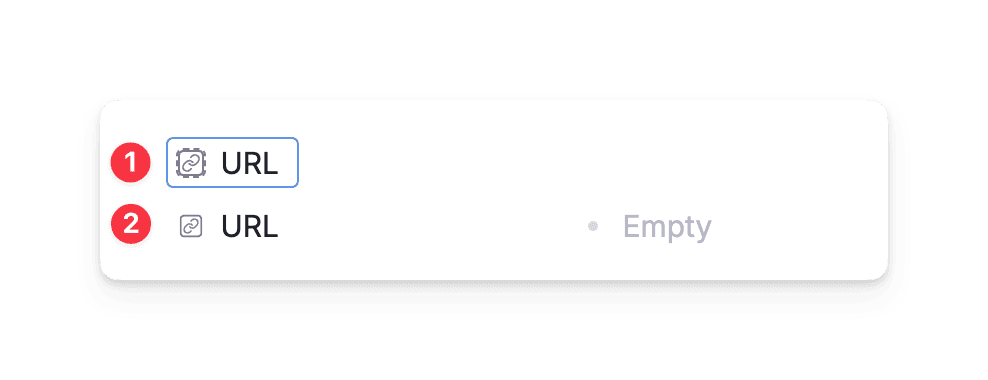
You can find it by putting your cursor in the field name, then press copy (Cmd/Ctrl+C) and put your cursor on an empty node and paste (Cmd/Ctrl+V).
Whenever you select an existing field to use, it is retrieving the settings from the field definition of that field.
When you create a brand new field, the field definition for that field lives in the place it was first created. If a field is created in a supertag template, it will only appear there unless you make it discoverable. This sends the field definition to the Schema.
Fields used in Search Nodes
See Search nodes