



Overview
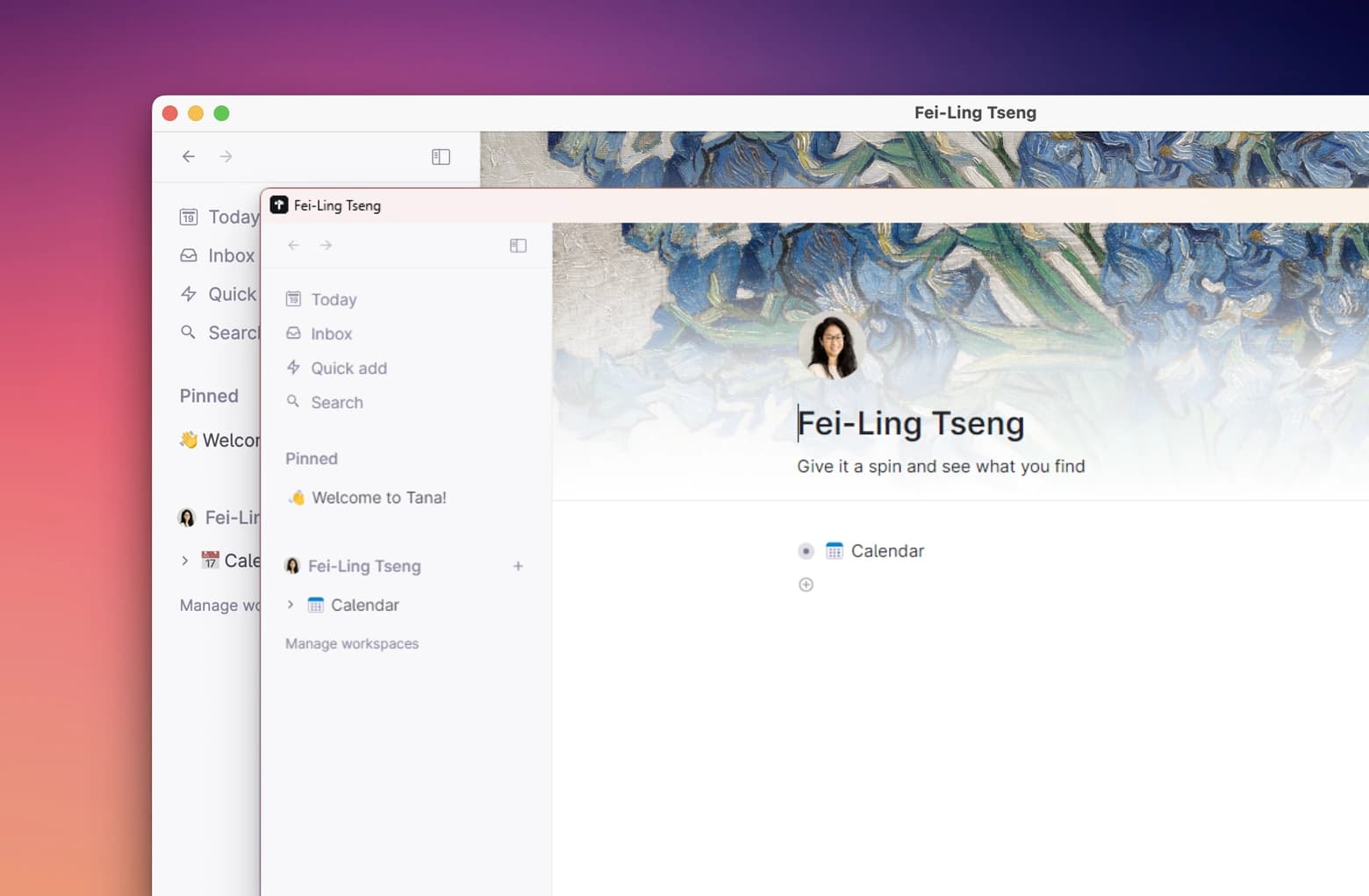
Tana Outliner's dedicated desktop app does everything your Tana Outliner on a browser does, but it doesn't require the browser to stay open in order to work. Tana Outliner loads all data each time you open it in a browser tab, so we recommend using Tana Outliner Desktop for daily use.
Desktop-exclusive features:
- Work offline — read, write, and search without an internet connection
- Global capture — capture from anywhere on your computer without switching to Tana Outliner
- Tabs and panels — open multiple nodes side by side with native tabs and split panels
- Desktop notifications — get notified before meetings start
Download here:
Download for Mac Download for Windows Download for Ubuntu/Debian Download for Fedora/Redhat
Work offline
Use Tana Outliner for desktop without an internet connection. Read, write and edit, search your workspace, and access most features even when traveling or experiencing network issues.
How it works
Temporary disconnection
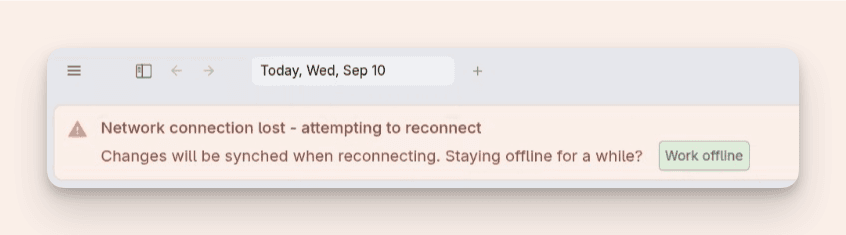
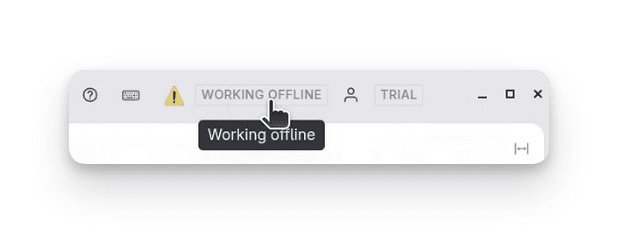
When you lose connection briefly, you'll see a spinning icon followed by a warning message. Tana Outliner lets you keep working in all workspaces, and your changes sync once you're back online. You can also click "Work offline" to enter full offline mode.
Full offline mode
Access through the user menu or by clicking "Work offline" during a disconnection. You can also reload Tana Outliner while disconnected.
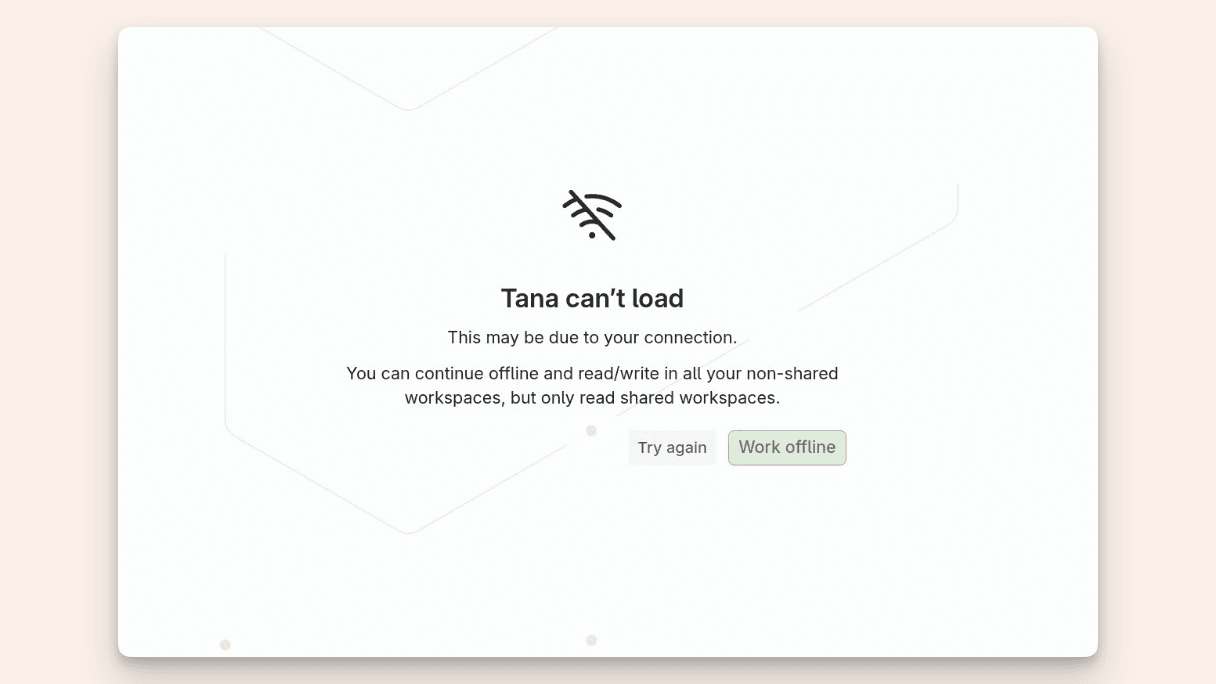
When entering offline mode, Tana Outliner builds search indexes locally so features like inline references work without a connection. The search index builds in the background after loading and may take a few minutes to be functional in large workspaces.
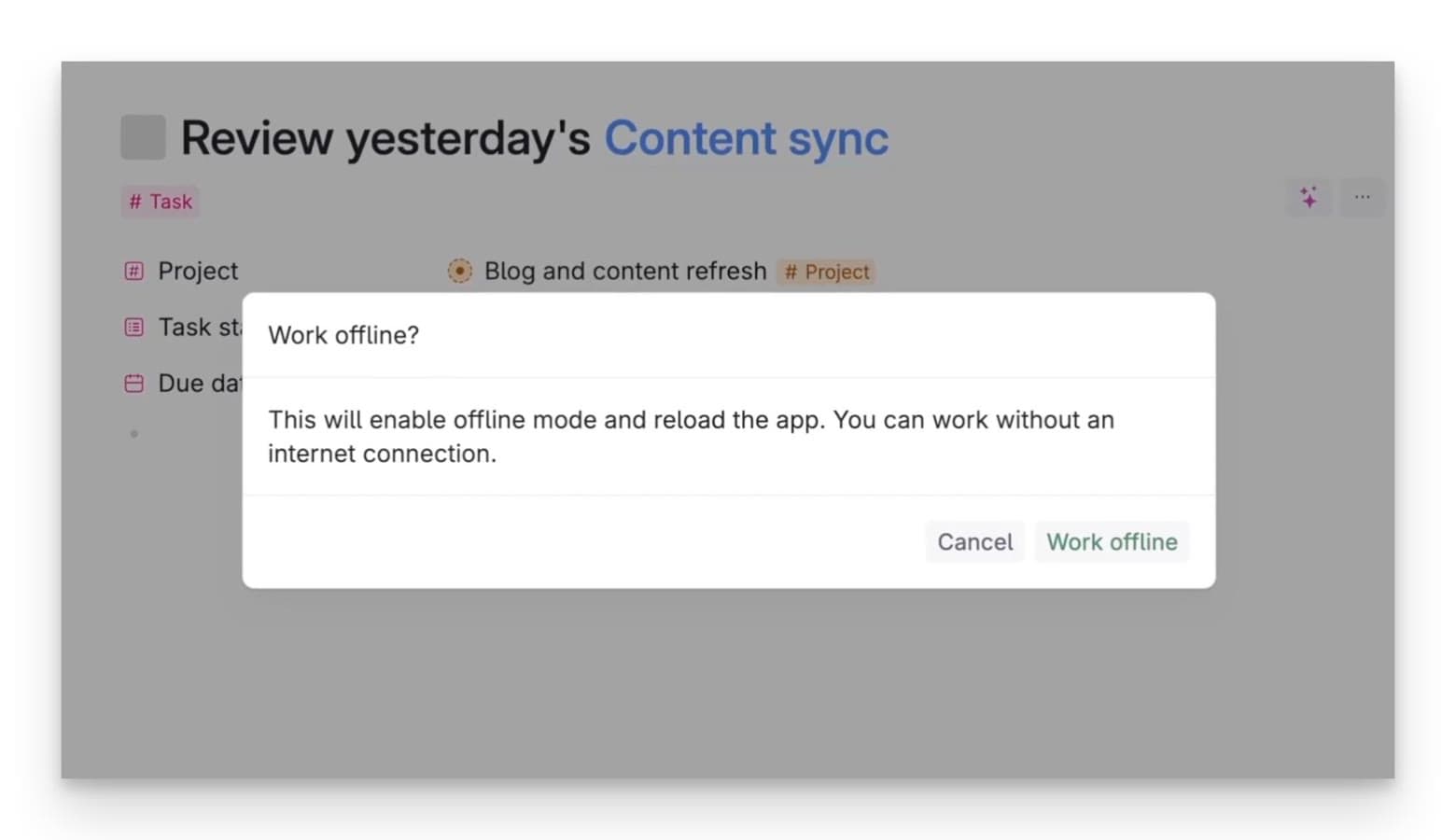
When loading finishes, you'll see an offline indicator in the top bar. When working offline, you can write and edit in all personal workspaces, and you have read access to all shared workspaces.
Going back online
When your connection returns, a green dot appears on the offline indicator in the topbar. Click it to go back online.
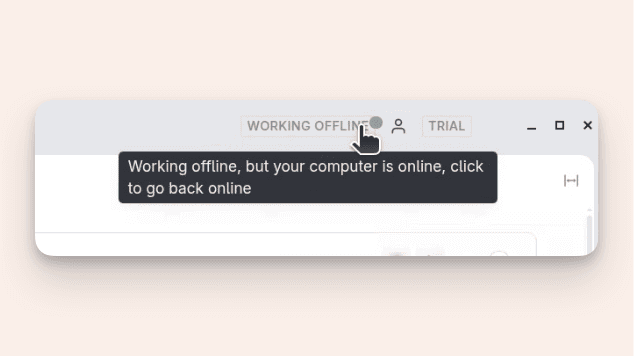
Tana Outliner will reload and sync all changes made while you were offline. Depending on how many changes you have made, this may take a few minutes.
What doesn't work offline
Most Tana Outliner features work even when offline. These features require an internet connection:
- Commands
- AI features (chat, commands, agents)
- Publishing pages
- Calendar sync
- Third-party integrations
- Search in workspaces with over 750,000 nodes
Global capture
The desktop app provides system-wide shortcuts for capturing content into Tana Outliner from any app on your computer.
Customizing capture shortcuts
Both the Global Clipper and Global voice recording shortcuts can be changed under: Options menu > Customize keybindings. See Desktop app options for how to access the Options menu.
Global Clipper
Capture nodes from anywhere on your computer. Hit Cmd+Shift+SpaceCtrl+Shift+Space and a small modal opens on top of whatever app you're in. Captured notes are sent to your daily note (Today).
What you can do in the clipper:
- Paste links and content from your clipboard
- Apply supertags — type a space then # to add a tag
- Set fields — use Tab to cycle through them
- Use @mentions
- Move the modal around on the screen
There is currently no option to send to the Inbox instead.
Known limitations
- Custom keyboard shortcuts and the command line are not available in the clipper
- Not all field option variants are supported yet
- Some issues may occur with extended tags and advanced field configuration
- Requires the Tana Outliner desktop app to be running
Global voice recording
The desktop app also has a system-wide shortcut for recording voice notes to Tana Outliner. The default is Cmd+Shift+ECtrl+Shift+E. Like voice recordings from Tana Capture, recordings end up in the Inbox, transcribed and ready to be actioned.
Tabs and panels
The Tana Outliner Desktop app offer native tabs, allowing you to open multiple tabs in a single window to keep projects, notes, and meetings side-by-side.
Use panels to split your screen and compare or work across pages without losing your place. Whether you're deep in planning or jumping between meetings, the Desktop app makes it easy to stay organized, reduce tab fatigue, and move faster across your graph.
Open a node in tab: Cmd+ClickCtrl+Click
Open a node in new panel: Shift+ClickShift+Click
See full list of keyboard shortcuts to use with Tabs and panels.
Desktop app options
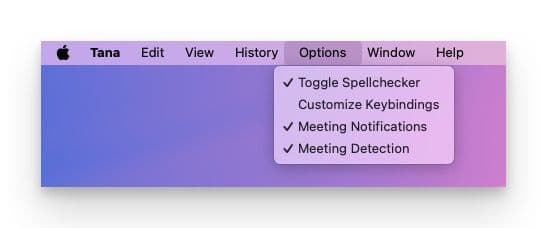
Access to the app Options (which is different from your Tana Outliner account settings) depends on which platform you're using:
- Mac: Always visible in the top bar
- Windows: Unhide it by hitting the Alt key
Desktop notifications for meetings
By default, desktop meeting notifications will be enabled. Notifications will be sent before scheduled meetings (from Google Calendar sync) or when you enter a meeting link and your microphone becomes active (meeting detection).
You can disable them in Options for Tana Outliner Desktop. You can also choose to only get notifications for scheduled meetings by disabling "Meeting detection".
Spell check
Turn this on or off by going to the Options menu > Toggle spellchecker
Open Tana Outliner link defaults
To change whether Tana Outliner links open in the app or in browser by default, run the command Reset "Always open in..." preference and the next time you click on a Tana Outliner link, the browser will prompt you to choose.
System requirements
The requirements for Tana Outliner Desktop app are the same as for Chromium. You can check out the most up to date system requirements here.