



Tana Outliner now offers a fully integrated AI meeting notetaker as part of the desktop experience. You can use it to transcribe meetings, generate summaries, and link notes directly to your work - without needing to install a plugin or add a bot.
The meeting notetaker works for both calls and in-person meetings by recording system audio, and can also be used for lectures, interviews, and other audio sources. The feature is available on both Mac and Windows through the Tana Outliner desktop app and supports over 60 languages with automatic language detection.
How to set it up
1. Open the configuration for your meeting supertag
- You can use an existing tag (e.g. #meeting) or create a new one by typing
#followed by your tag name anywhere in Tana Outliner. - You can set up the meeting notetaker on as many supertags as you want.
2. Enable meeting notetaker on a supertag
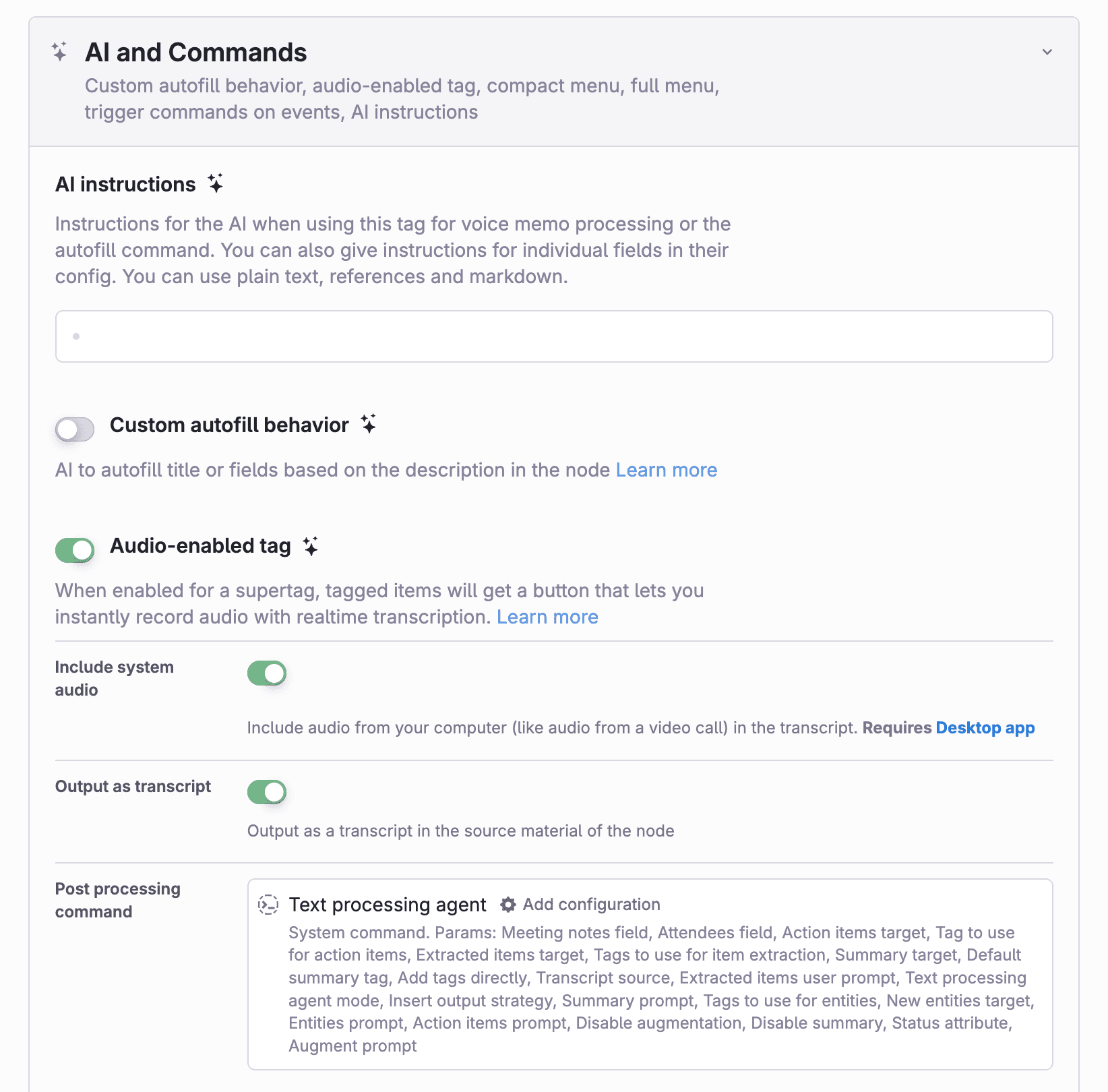
- Toggle
Audio-enabled tagon under the "AI and commands" section. - Turn on
Include system audioto include audio played by your computer, for example other voices in online meetings. - Turn on
Output as transcriptif you want to transcribe with speaker separation and timestamps (stored in the note's source material).
This will automatically add the "Text processing agent" command with its default configuration.
See here for further customization of the text processing agent.
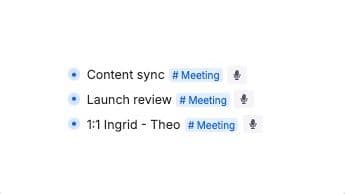
Enabling these options will make a Mic button appear on the supertag:
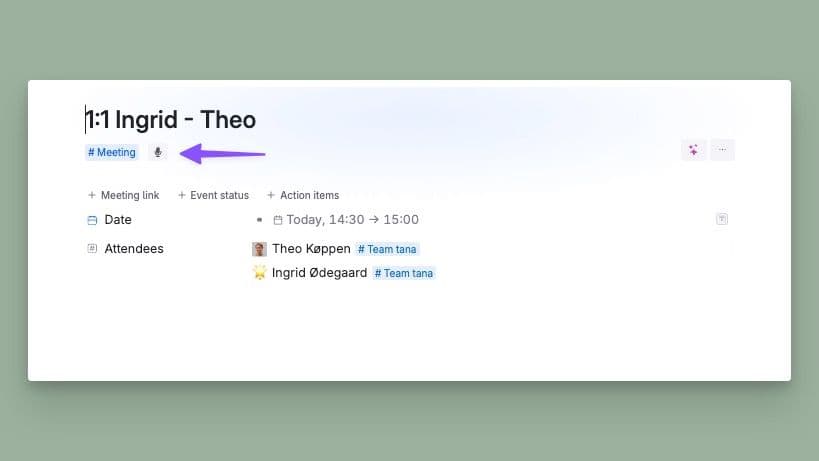
When you open a tagged meeting, you'll see the mic button below the title:
Start note taking
You can start a transcription in several ways:
- Click the microphone button on any note tagged with an audio-enabled supertag.
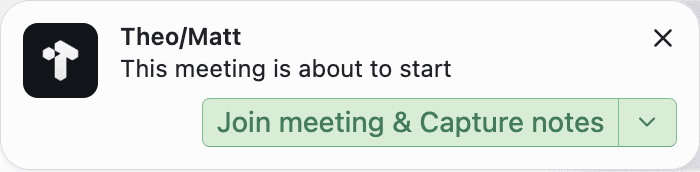
- Click the desktop notification if Tana Outliner detects a meeting or you've synced your Google Calendar to Tana Outliner.
- Use the command line with Cmd+KCtrl+K, choose "Start meeting with...", and select the supertag you want to use (all audio-enabled tags will show).
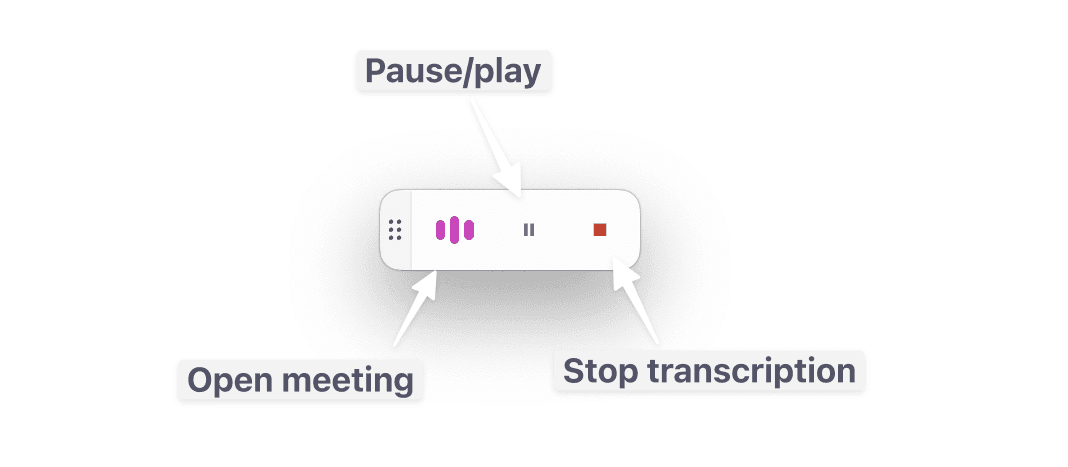
When meeting transcription starts you'll see a floating recording menu, and a recording indicator in the sidebar. This gives you quick controls to pause for privacy, or end the meeting and start post-processing. Clicking the recording indicator will open the meeting note in Tana Outliner.
Transcript view
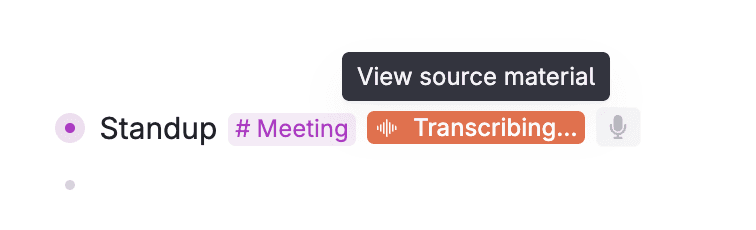
You'll see a Transcribing... button on the meeting that you can click to open and see the live transcription in source material. This button will also be available when you pause or stop the transcription so you can revisit the transcription at any time.
Tana Outliner AI chat is available on all notes. To chat with a meeting note:
- Press space on an empty line inside the meeting
- Or click Ask AI about this content in the top right
Re-transcribe from audio file
If real-time transcription stops due to network issues or vendor outages, you can retranscribe from the captured audio file using the Re-transcribe from recordings command available in context menu on right-click or through the command line.
How to enable it?
When this is on, Tana Outliner keeps the original audio of each live transcription so you can re-transcribe it later if you run into network or language problems.
- The first time you run a live transcription, Tana Outliner asks once whether to save the audio.
- You can change it at any time from the command line:
Save audio from transcriptionsto turn it on, orStop saving audio from transcriptionsto turn it off.
How to re-transcribe
In the right-click/context menu on a node containing audio recordings, you'll see these options:
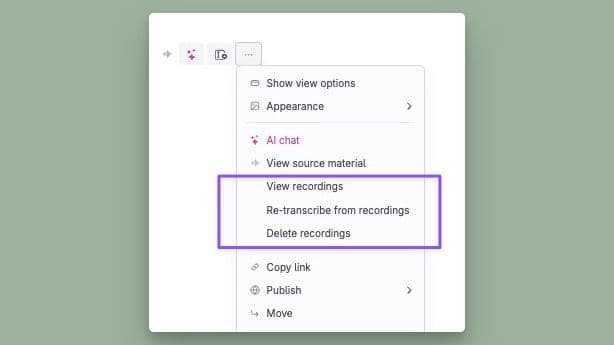
View recordings - will open the audio recordings in a new panel
Re-transcribe from recordings - starts a new re-transcription (no language selection will attempt to auto-detect)
Delete recordings - Will delete the audio recording files. No re-transcription will be possible after doing this.
Re-transcribe in another language
If you get the wrong/an undesired language on your summary, you can re-transcribe in the language you want:
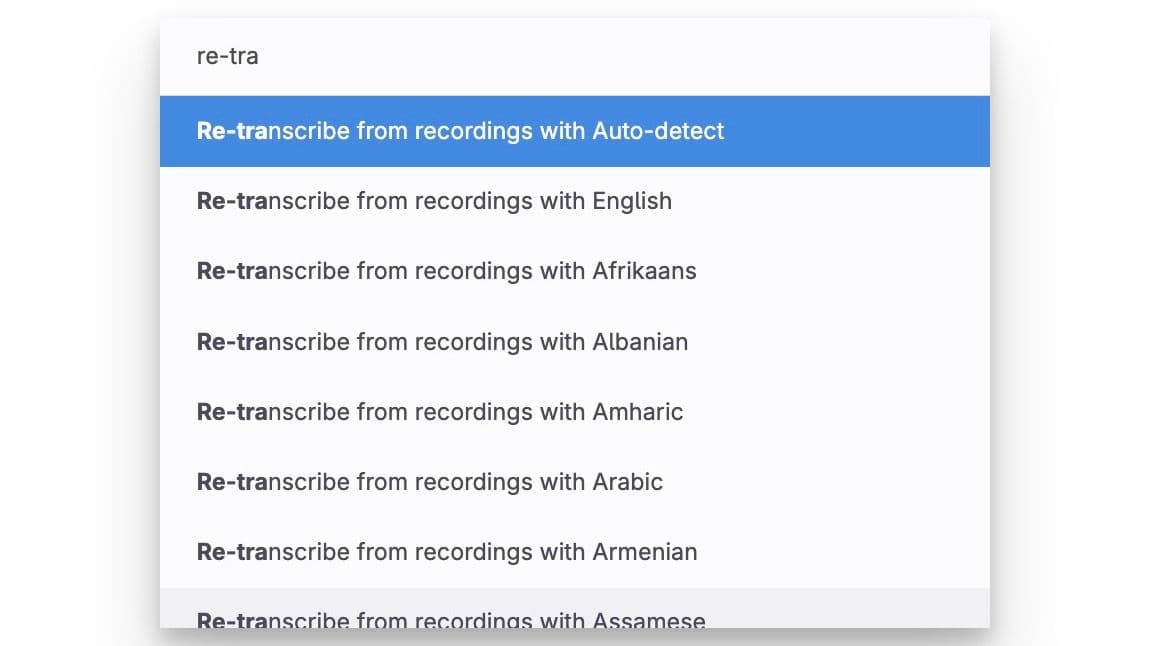
- Cmd+KCtrl+K > Re-transcribe from recordings (press Enter)
- Select the language you want
Audio file handling
Audio recordings are automatically captured and stored to enable re-transcription when needed:
- Audio files are stored securely in your Tana Outliner cloud storage, not locally on your device
- Recordings have a technical limit of 59 minutes. Longer sessions will create multiple audio files (e.g., a 3-hour meeting will generate 3 separate recordings)
- Starting and stopping transcription multiple times creates multiple audio recordings
- If network connection is permanently lost during recording, audio files will not be persisted after 5 retry attempts
- Audio files are not directly accessible through the interface
Transcription language
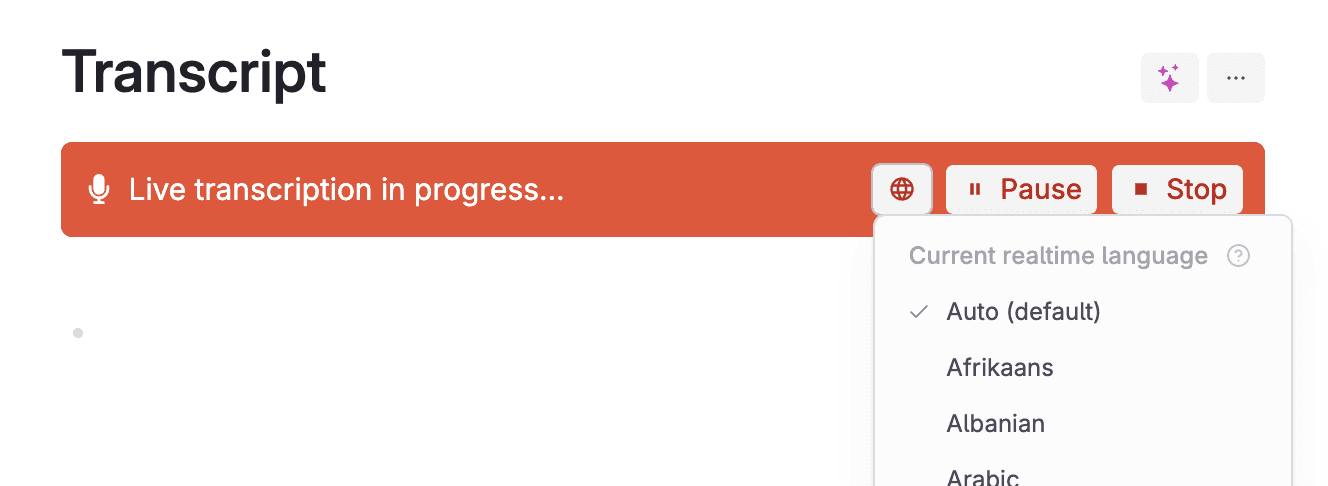
Tana Outliner supports realtime transcription in over 60 languages. By default, transcription uses auto-detect, which can dynamically switch between languages during a meeting.
To change this:
- Shift-click the microphone button before starting the transcription,
- Click the globe icon in the transcription view during, or
- Set a default language using the
Set default transcription language to...command
The summary will be generated in the same language as the spoken language. You can translate the summary by using AI chat.
Configure transcription
Transcription context
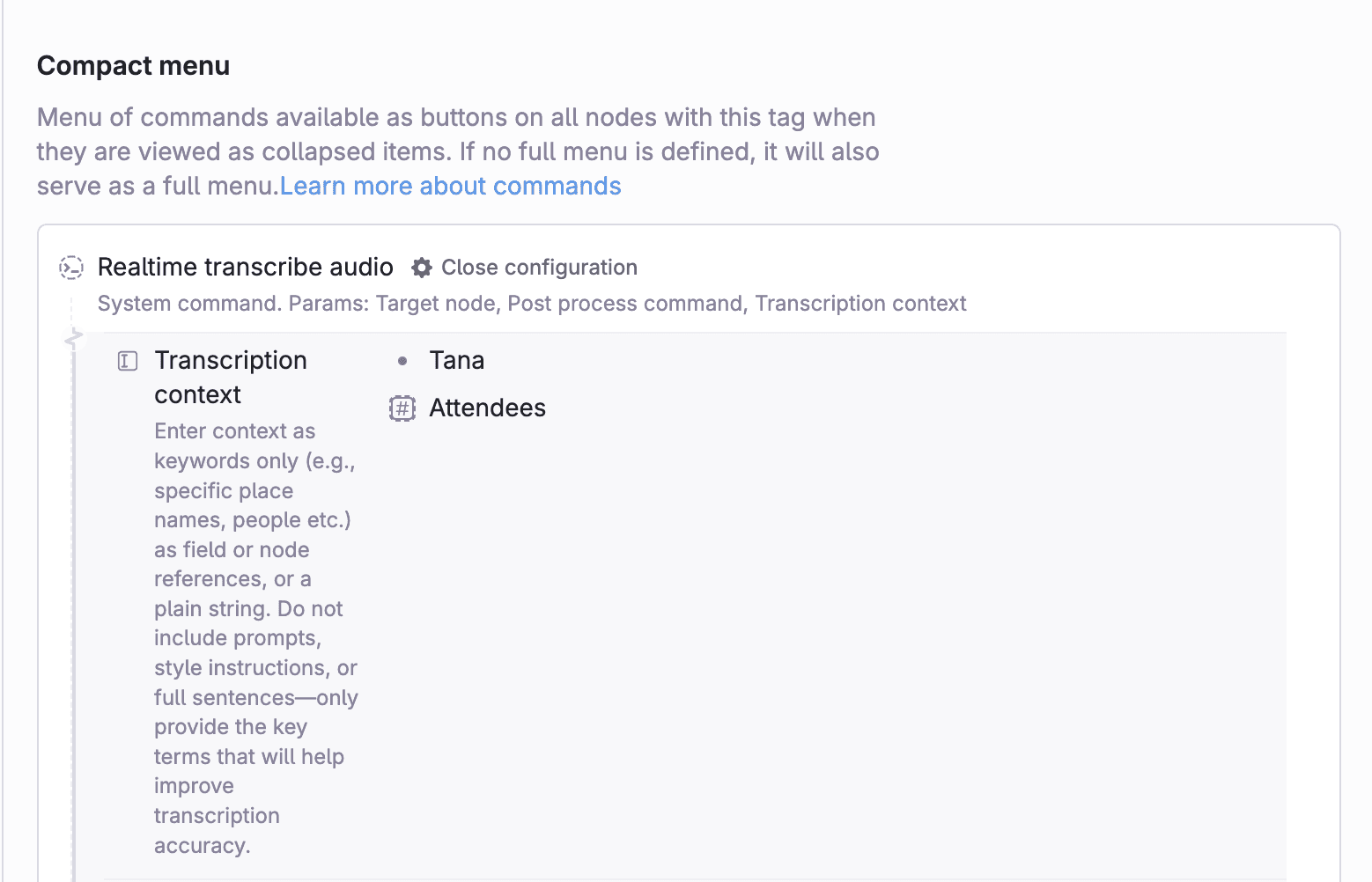
You can add context to improve the quality of transcription for difficult words or names. This is configured in the Realtime transcribe audio command (automatically added when you enable audio on a tag):
- Add the Transcription context parameter to the Realtime transcribe audio command under "Compact menu".
- Include names or other vocabulary manually, or reference a field (e.g. Attendees) to include dynamic context from the meeting.
Use cases beyond regular meetings
This feature is built for meetings but also works well for:
- User interviews
- Sales calls
- Hiring interviews
- Voice workflows
- Lectures
- And more!
Explore use cases and workflows in the Tana Outliner template store!