



The sidebar is where you can immediately access the most important parts of your graph. Most often you'll be reaching for the daily notes page (Today), Pinned items, and all the workspaces you have access to.
- Today: Access your daily notes instantly. Use Ctrl+Shift+DCtrl+Shift+D as a keyboard shortcut from anywhere.
- Supertags: Search all supertags across all workspaces.
- AI chat: Start an AI chat directly from the sidebar.
- Create new: Create a new note instantly, default saved to Today.
- Global Search: The sidebar search (accessed via Cmd+SCtrl+S) shows everything you have access to across all workspaces, unlike workspace-specific searches which are limited by access/visibility settings.
- Inbox: An option if you want to process notes captured from mobile manually. Can be selected as destination for captured content in the mobile apps, will appear on desktop when there is content in it.
- Pinned Items: Bookmark important nodes for quick access, whether they're active projects you frequently visit or commonly used resources.
- Workspace Management: View and access all your workspaces, including both those you've created and those you've been invited to join.
Tips for getting more out of the sidebar
- Keep your most important nodes or workflows in the top section for quick access.
- Use pinned searches to monitor evolving lists like open tasks, team notes, active deals, or research topics.
- Collapse the sidebar during focused writing or deep work to reduce visual noise.
- Resize the sidebar when you need more room to scan long titles or large sets of pinned items.
- Expand/collapse things in a pinned node or a workspace to find a sub-node.
Overview of Tana Outliner core navigation
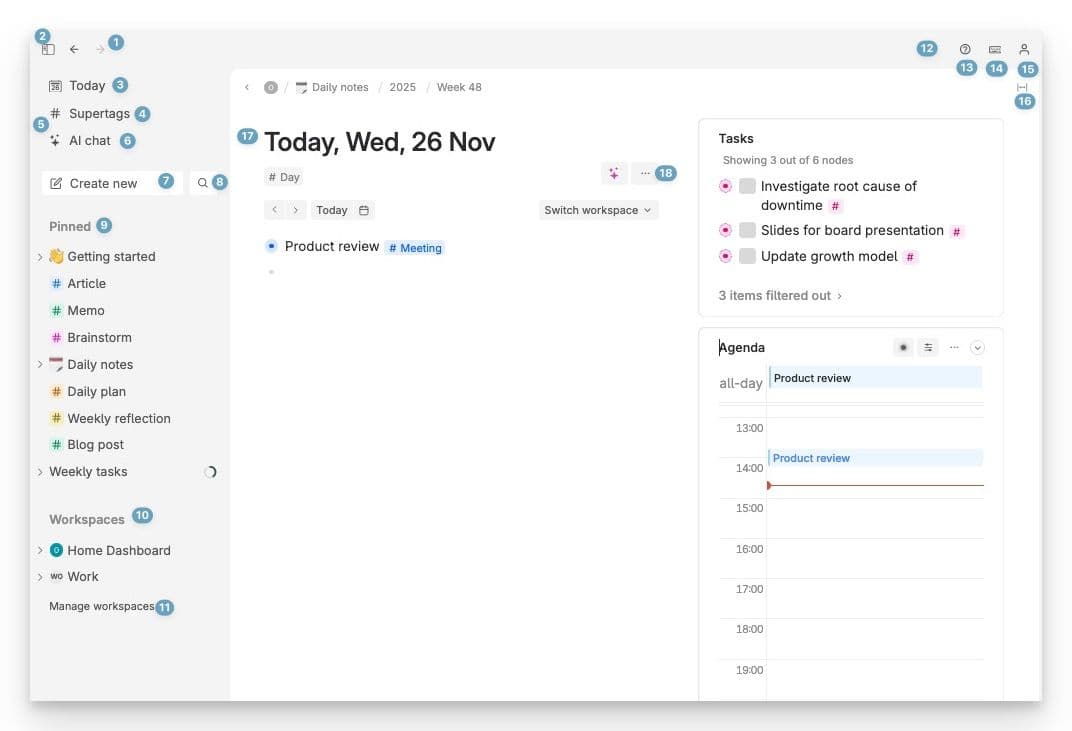
- Back/Forward button (navigation)
- Toggle sidebar open/closed
- Today: go Today's daily note
- Supertags: Overview of all supertags
- Inbox: Things that are sent from Tana Outliner mobile app (only shows if you send something to it)
- AI chat: Chat with AI. On Tana Outliner paid subscriptions only
- Create new: sends new nodes to Today
- Go to node: a global search for going to any node
- Pinned nodes: pin nodes appear here
- Workspaces: a list of workspaces for easy access
- Manage workspaces: choose which workspaces to show on the sidebar
- Notifications: nodes you have been notified on
- Help: A shortcut to help content
- Keyboard shortcuts: list of basic shortcuts
- Account settings
- Content width
- Main node gripper
- Node options (ellipsis).
Sidebar navigation
Resize the sidebar
You can now adjust the sidebar to the exact width you prefer.
How to resize:
- Drag the vertical divider between the sidebar and the editor
- Make the sidebar narrow for focused writing or wider when you need to browse more items
- To revert to the default width, open Cmd+KCtrl+K > Reset sidebar width
Collapse the sidebar for full focus
For uninterrupted writing, research, or meeting notes, you can collapse the sidebar completely.
How to collapse:
- Click the sidebar toggle button once to minimize it
- Click the toggle twice to fully collapse it
- Click again to bring it back when you need it
You can also use the command line:
- Show sidebar - opens the full sidebar
- Show mini sidebar - minimizes the sidebar to only show icons
- Hide sidebar - hides the sidebar completely
- Toggle sidebar - switches to the next state; Full sidebar -> Minimized sidebar -> Hidden sidebar
Customizing the sidebar
Hide sidebar items
The top of the sidebar is where you keep your most important places in Tana Outliner: your Daily Page, key projects, or any node you return to often.
You can now control which items appear here.
How to customize:
- Right-click any item in the top section you want to hide, click "Hide"
- If you want to bring an item back, type Cmd+KCtrl+K >
Toggle (item) in sidebaror go to Settings and check "Show (item) in sidebar".
This helps you keep the sidebar focused on the things you use daily.
Pin nodes and searches
Pinning lets you keep pages or live searches one click away. Anything you pin appears in the sidebar under the Pinned section.
Pinning options:
- Pin any node from its right-click menu
- Cmd+KCtrl+K >
Pin to sidebarorOpen pinned node (select node) - Pin a saved search to monitor tasks, meetings, topics, or any structured view that updates automatically
Pinned items are ideal for projects, dashboards, or recurring workflows.
Progress bars now visible in the sidebar
When you pin a node that contains a progress bar, the sidebar now displays a small circular progress indicator next to it. This makes Tana Outliner a fast and reliable task hub for managers juggling multiple projects.
You'll see:
- A circle showing how many subtasks or checkboxes are complete
- A tooltip on hover with exact numbers (completed vs. total)
- Live updates as tasks are checked off anywhere in your workspace
This means you can use the sidebar as a lightweight project tracker without switching views.
Sidebar items
Today
Press on the Today button to navigate to your daily note. You can also use the shortcut Ctrl+Shift+DCtrl+Shift+D from anywhere to do the same.
In addition, you can also:
- Cmd/Ctrl+click it to open in a new tab (native tabs in Tana Outliner Desktop app)
- Shift+click to open in a new panel next to existing content you have open
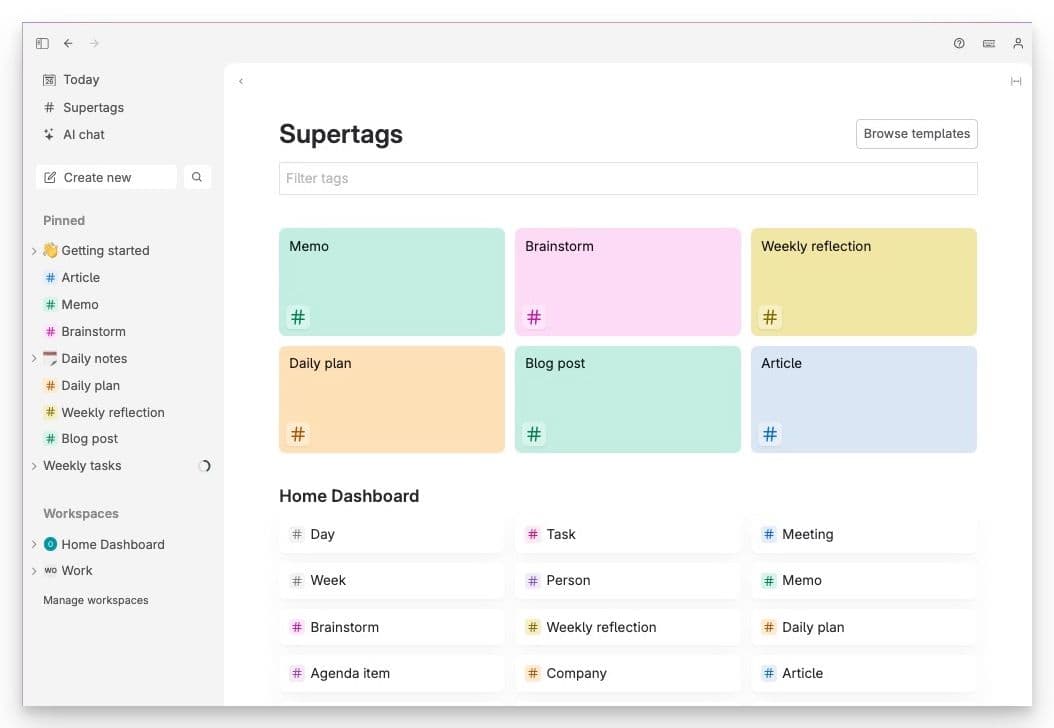
Supertags
This is an overview of all supertags in your workspaces. You can search for a supertag, and then click to see all content tagged, or right-click to configure the tag, pin or unpin it.
- Pinned tags will appear as large tiles on the top for easy access.
Create new button
Create new adds a new node to your daily note. You'll see a blank slate and can start writing, with a few suggestions to help you do common actions:
- Suggested tags: Shows the most used supertags from all workspaces you have access to.
- Start live transcription: Begins to transcribe using your microphone. Requires a Tana Outliner paid subscription.
- Create a search node: Creates a simple search node from here.
PS: The Quick Add modal still exists via the shortcut Cmd+Shift+SpaceCtrl+Shift+Space
Quick Add (hidden)
Quick add is the fastest way to add things to your daily notes without context switching.
- Press Quick add in the sidebar, or use the keyboard shortcut Cmd+Shift+SpaceCtrl+Shift+Space
- Type in your note. Press Add to today, or press Cmd+Shift+SpaceCtrl+Shift+Space again to send to your daily note
To capture from outside Tana Outliner entirely, use the Global Clipper (Cmd+Shift+SpaceCtrl+Shift+Space). It opens a system-wide modal on top of any app. Requires Tana Outliner Desktop.
Global Search
This search has access to all nodes that you have permission to view, from all workspaces.
To start a search:
- Access it via the sidebar, or by hitting Cmd+SCtrl+S
- You only need to type two letters to start a search
- Type
#(tag name)and continue typing if you want to limit the search to only tagged items with a certain supertag
To open a result:
- Use your arrow keys to navigate to desired result
- Then hit Enter to navigate to that node
- Hit Ctrl/Cmd+Click to open a result in a new tab
- Hit Shift+Click to open a result in a new panel
- Or, hit Alt+EnterAlt+Enter to take you to a search list of the item you are on.
You can also search within any node you find:
- To search within a node, navigate to it with your mouse or arrow keys, then hit Tab. This will run the search again only looking within the node you specified.
- Cmd+KCtrl+K > Search within if you want to search inside a node you are viewing.
Recents
If you need to find a node you were recently working on, Recents will show you the 100 most recently edited nodes that you have created/edited.
When you, or someone you collaborate with in a shared workspace, make changes to a node you have edited or created, this will update the "Last edited time" of the node.
Recents will only show top level nodes ("Entities") to avoid having all individual nodes inside other nodes show up.
A node is considered an entity if:
- It has a supertag
- It lives on top level in the library (direct child of the library)
- It was captured from mobile apps
How Recents work
When someone changes a node you have ever edited/created, it will surface in Recents. Recents is grouped by date, and sorted by the system field Last edited time with most recent on top.
- Changing or setting a field value will update the last edited time
- Changing the node contents will update the last edited time
- It will show content from all workspaces
- If a node in Recents has a Supertag with pinned fields, these will automatically be displayed on the node
Recents is a system view that may be updated by Tana Outliner and can't be customized (but you can re-create your own version and pin it).
Inbox
This button takes you to an Inbox where you can choose to send things from Tana Outliner mobile apps if you want to manually process it.
- If you have AI enabled in Tana Outliner, a Transcribe button next to the Inbox appears, where you can run transcription on all voice memos in the Inbox that haven't been transcribed yet.
Pinned nodes
This is the place where you can pin nodes for easy access.
To pin a node:
- Option 1: Drag any node from the window into this area
- Option 2: Run the command
Pin to sidebar
To open pinned nodes:
- Option 1: Click on them in the sidebar
- Option 2: Run the command
Open pinnedand select the node you want to open
To unpin:
- Hover over the pin until you see an x to the right, and click it.
Workspaces
Every workspace you have access to will show up here.
- To go to the home node of a workspace, click on the workspace.
- To go to the daily page of that workspace, Alt+click on the workspace.
- When you've been invited to a workspace, go to Manage workspaces to add it to the sidebar.
- Expand the workspace node by clicking the arrow node to the left of it
- Add a new item to the home node by hovering over the workspace and click on the + icon when it shows up
Notifications
When someone in a shared workspace uses the command Notify to notify you on a node, that notification will appear here.
Help
Opens a little in-app help box where you can quickly search for answers and access the entire Tana Outliner Learn help center. You can also find the Tana AI help chat here, that can help you find answers to how features in Tana Outliner work, or how you can configure something.
Keyboard shortcuts
Opens a cheat sheet of common shortcuts in the side panel. If you're looking for your custom keyboard shortcuts, go to Account Settings.
Account settings
See Account Settings for more.