



Overview
The daily notes meet a very simple need: to be a quick catch-all for random things that come up in your day. Later, you can choose to process and move it elsewhere, but only if you captured it first.
Daily notes are also a place to store data where the time of entry is important. Every workspace provides two modes of writing: by hierarchy (on the home/library nodes), or by time (daily notes). The daily notes would be a very logical place to keep things like logs, journals, agendas, and daily work lists.
Finally, use the daily notes for staging your day's work and getting in the right frame of mind. Using the #day template, you can customize your day node to be the best companion for guiding you through your day. It's a place you can set and build habits, give yourself a random quote of the day, or remind yourself of your close-out routine when you're ready to sign off.
If you like starting your day with a clean kitchen counter, using Tana Outliner's time-based daily notes are perfect for you. (However, if you prefer having a workshop table where things stay exactly the way you left them the night before, you may prefer working in hierarchy-based nodes, using dashboards in the Home/Library nodes and the Pinned section in the sidebar to orient yourself.)
Basics
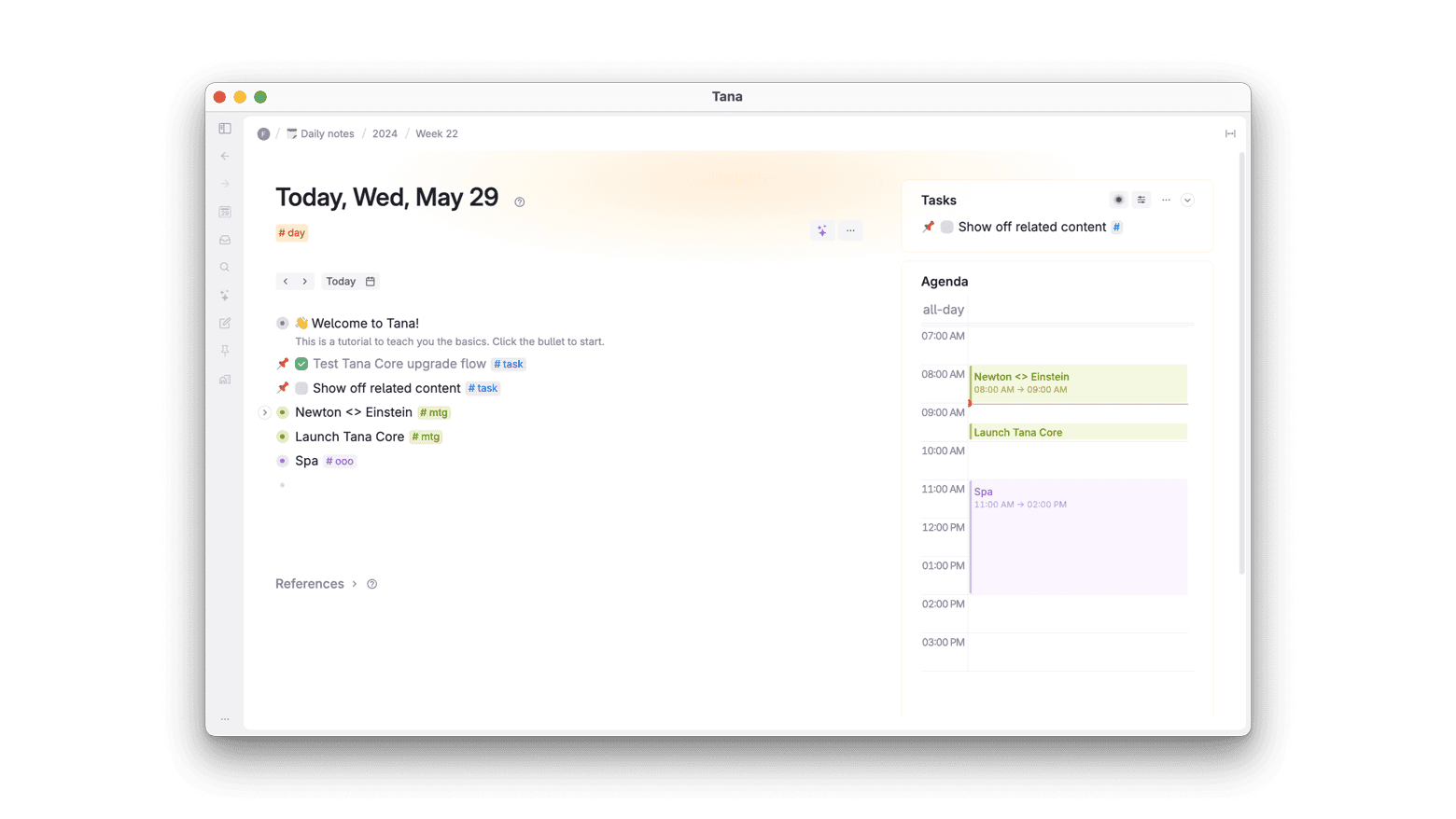
- Every day is represented by one node. There are also week/month/year nodes, which you can navigate to through the breadcrumbs.
- Day nodes are tied to Date objects. This means that all nodes with the date of the day node appear in the reference section of the day node. See the documentation on Dates and Calendar nodes for more. This page can be seen as an extension of the aforementioned, diving into more detail on the day node specifically. But all principles about calendar nodes apply to day nodes as well.
- Having a day supertag is optional. Supertags on your day nodes are only needed if you want to build out a template for your day. For inspiration, our Daily notes showcase has many examples from the community of different daily notes setups.
- Nodes created in a search node will be sent to the current day node.
- Nodes synced via Tana Capture (and soon, mobile) appear on the current day node.
- Notes captured via the Global Clipper (Cmd+Shift+SpaceCtrl+Shift+Space in the desktop app) are sent to the current day node.
- Nodes you send to a shared workspace via the Move to [workspace] suggestion will, by default, go to the day node of that workspace.
Details
Daily notes in your private workspace
A freshly opened account will have the daily notes already set up and ready to go for you.
Doing a workspace "factory reset" will give you a workspace without daily notes, but it's super simple to get them back, with all the instructions in the linked resource.
How to find your daily notes
- Sidebar button:
Today - Keyboard Shortcut: Ctrl+Shift+DCtrl+Shift+D
- Command line:
Open calendar for -> [pick a day] - Sidebar shortcut: Option/Alt+Shift+Click on the workspace names
- On your workspace home node: click on the Daily notes bullet
On Tana Outliner paid plans
Your private daily notes have a central role in the following features:
Calendar integration: the Agenda
A Related content section called Agenda gets installed when you set up your calendar integration. It shows you your events for the day.
AI chat: Save location
All AI chats get saved to the day node under a node called AI chat.
Tip: If you add a node called this to your supertag template, you can choose where the AI chats end up. Note that the template node has to be a direct child of the day node.
Daily notes in shared workspaces
How to find the daily notes of a shared workspace
- If on your own daily notes page:
Switch workspace - Option/Alt+Shift+Click on your workspace in the sidebar
How to move nodes from your private to the shared workspace
There's a very easy workflow you can use to ensure that you start drafts of nodes in your private workspace, then when you're ready to let others see it, you can send it over easily. It uses the home workspace of a supertag to hint at where it ought to live.
- In your private daily notes (or anywhere in your workspace), create a new node and add a supertag from the shared workspace
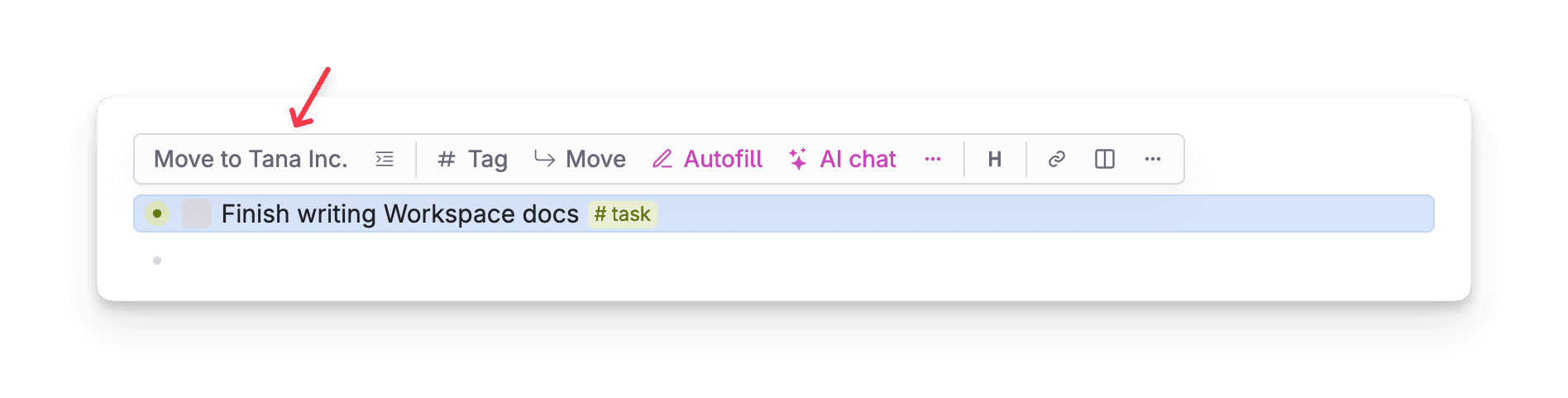
- Hit EscEsc to toggle the node editor toolbar. The first option should be a prompt to move it to the workspace the supertag belongs to.
- Click it to send the node to that workspace's day node, which leaves a reference in the original workspace.
Searching for nodes relative to your day node
There are many ways to find things based on the day node, this is an overview with links to further descriptions.
- Nodes that live on your day nodes
- Search term
ON DAY NODE: Restricts search to find any child of a day node - System calculated field Date from calendar node: This system field will be automatically filled if it lives under/is a descendant of the day node. You can use it in search queries, and for sorting, filtering, grouping, or displaying in your views. Note: This field is independent from the node's created and edited times. It will change if you move the node to another day node.
- Search term
- Nodes that mention the date of the day node
- Search term
PARENT/GRANDPARENT: To match a date in a field, use the P/GP terms as the field value to refer to the day node. The day node can only be one (PARENT) or two (GRANDPARENT) levels away from the search node. Tip: You can usePARENT+3/PARENT-3to find future/past dates relative to the target. - Search operator
>DATE OVERLAPS: Used together with the above, this operator allows you to find nodes where the date values you're searching through overlaps with the target P/GP day node. Example: a date value of Nov 20 - Dec 5 will overlap with the Nov 29 day node. - Search operators
>LT/>GT: Short for Less Than and Greater Than, with this you can create a more precise and wider range of dates you want to match than>DATE OVERLAPS. Use this withP/GPcombined with the+/-for some very powerful searches.
- Search term
For more information on searching for dates, see the Date searches section of the Dates and Calendar notes documentation, and also this example on common date searches.
For further information on Search nodes, see Search nodes documentation.