



Command nodes help you get one or more tasks done in Tana Outliner. You can create your own command nodes with multiple commands, or steps, within them. For example, build a “Process voice memo” command node that grabs the voice recording, transcribes it, creates and tags tasks and ideas that it finds, and sends it all to your daily notes.
Command nodes can be run via the command line, as buttons on a supertag, or via node events.
Command nodes are easier to understand if you're already comfortable with using the command line and the search query.
For commands that use AI, see here: AI command nodes
Basics
- There are three essential elements to creating custom commands: the
command nodethat is a container for the command, thecommandsthat represent the actions you want to do, and theparametersthat are the settings for the commands - To create a custom command node, run Cmd+KCtrl+K > Convert to command node on an empty node.
- To configure what the command node does, add commands as child nodes to it. To get a list of all available commands you can add, use @.
- Each command can receive certain parameters (represented as system fields), listed in the description. The ones that are starred are required. Add the necessary parameter fields to the command (hit > to create a field, then the name of the parameter), and fill it with the necessary field value.
- If there are multiple commands in the command node, they are executed in the order that they're listed from the top.
- You cannot add the same command twice. To repeat a command, wrap it in another command node and add that to the list.
- Command nodes appear as buttons attached to nodes, supertag instances, or fields. They also appear in the command line.
- You can control when/where a command appears by using node filter and node context parameters on the main command node.
- You can find all commands in your workspaces by writing the keyword operator
IS COMMANDin the search node.
Create a command node
To create a command node, on any node go Cmd+KCtrl+K > Convert to command node:
The icon of the node will change. Give the command node a name, which will appear on command buttons, and on the command line.
Set up commands and parameters
Commands
To configure the command node, select the commands you want using @. This gives you a filtered list of all available commands, including Tana Outliner commands, AI commands and custom commands you've defined previously.
Tana Outliner commands include:
- Set field value tells the system to do the action of setting a field underneath your node—same way we do it ourselves—and then, optionally, filling that field with a specific value.
- Insert a cloned copy of a node tells the system to do the action of copying another node (that you specify inside the command) and bringing a clone of that node into the context in which you're working.
- Add tag adds a tag to your node, and Remove tag takes one away.
See All Tana Outliner commands for a full list of options.
Parameters
Each command has a set of parameters you use to configure it. To add a parameter to a command, add any of the listed parameters as a field under the command. Parameters with a star are required.
Using the example of the Move node command, you'll find these settings:
- Target node: Let's you instruct the action where to send the moved node.
- Remove reference after moving node: Let's you decide whether you want there to be a reference to your moved node at the current location, or not.
- Node filter/Node context: These settings are available on all commands and let you specify which nodes will run your command, in various ways.
Using the Move node-command and these settings, you could, for instance, make a command that
- Sends a node to your team workspace and
- Removes the reference from your workspace
Combining this with Add tag and Set field values, you could
- create a new
#project(Add tag) - assign it to your teammate
Brage(Set field value) - set status to
Active(Set field value) and - send it to your shared workspace
Viral Content(Move node)
all with one button click.
Access commands
Commands in the command line
Once you've configured your command node, it will appear in the command line (Cmd+KCtrl+K) as another command you can access alongside the default commands.
Commands as buttons
Once you've configured your command node, you can use it to make buttons appear in any node. With your caret on target node, go to the command line Cmd+KCtrl+K > Configure node to open the node configuration. Add your command node in the Commands field.
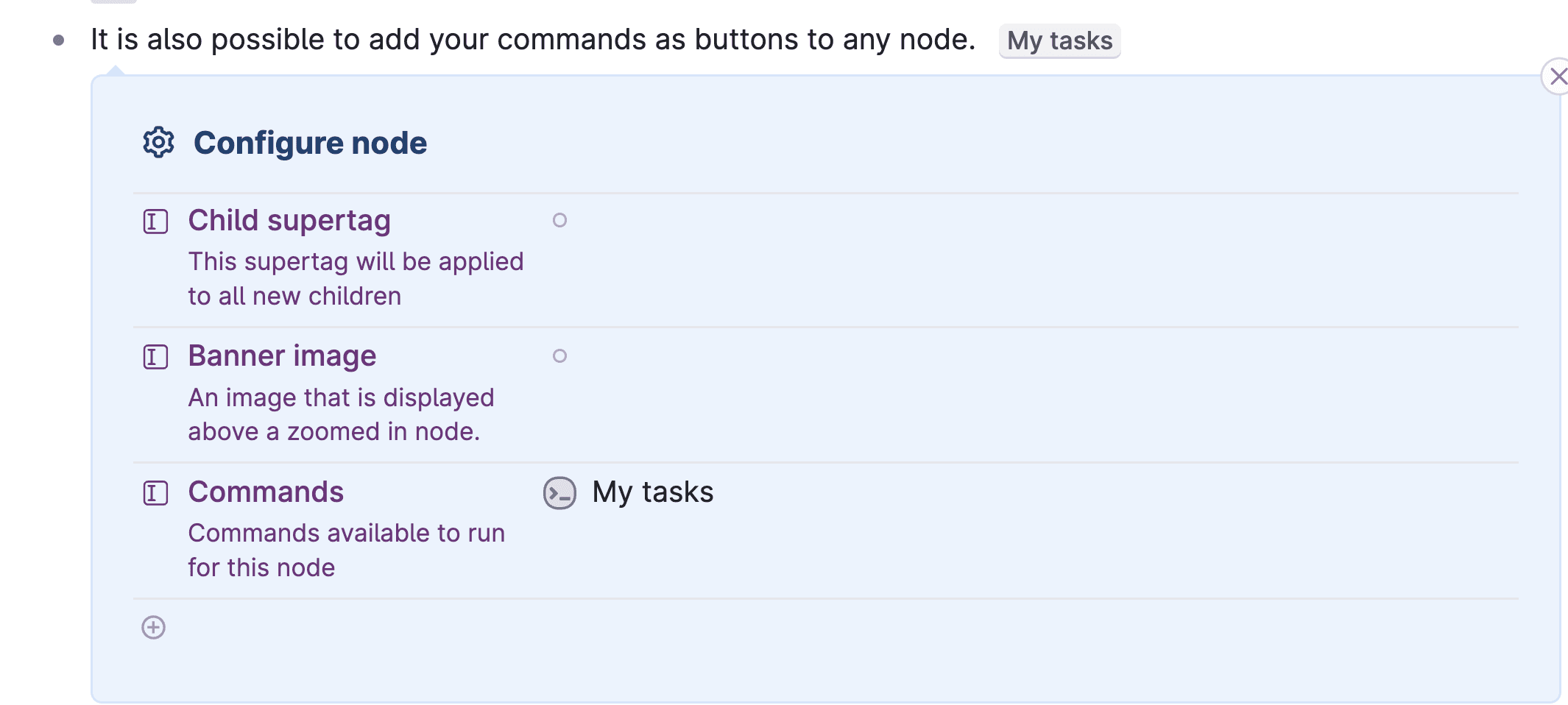
You can also add a command node to a supertag or field, see the supertag/field configuration panel > AI and Commands section > Compact/Full menu. Paste in the command you want to use in the compact or full menu field, and the command will appear alongside the tagged node or field.

Command menu buttons
It is now possible to group multiple commands together in a menu button. These can either be shown on collapsed nodes (Compact menu) or only when you expand/zoom into a node (Full menu).
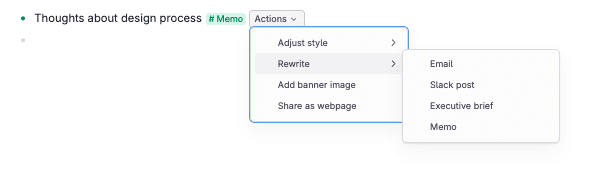
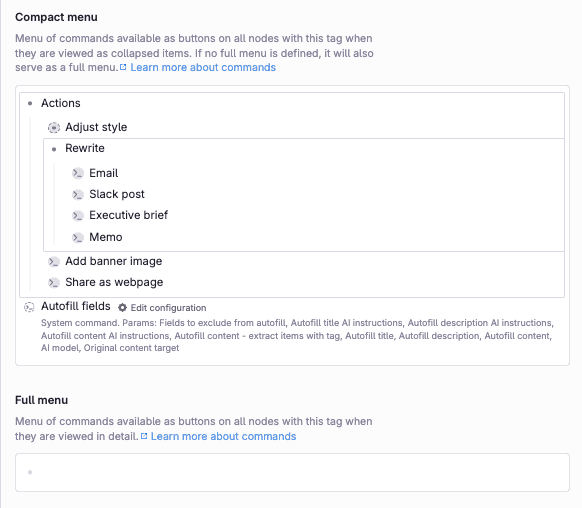
To create command menu buttons;
- Go into the AI and Commands section, to Compact/Full menu
- In one of the fields, create a node with the menu title
- Do Cmd+KCtrl+K > Convert to Group on the node
- Indent below the node and paste in the commands you want shown in the menu
- For nested menus, make an indented node and convert this to a group, before pasting commands indented under that
Node filter
Using the parameter Node Filter, you can use search query language to control which nodes the command can be run on.
For instance, if you made a command specifically to run on your #standup tag and no other tag or node, you can add this:
>Node filter: #standup
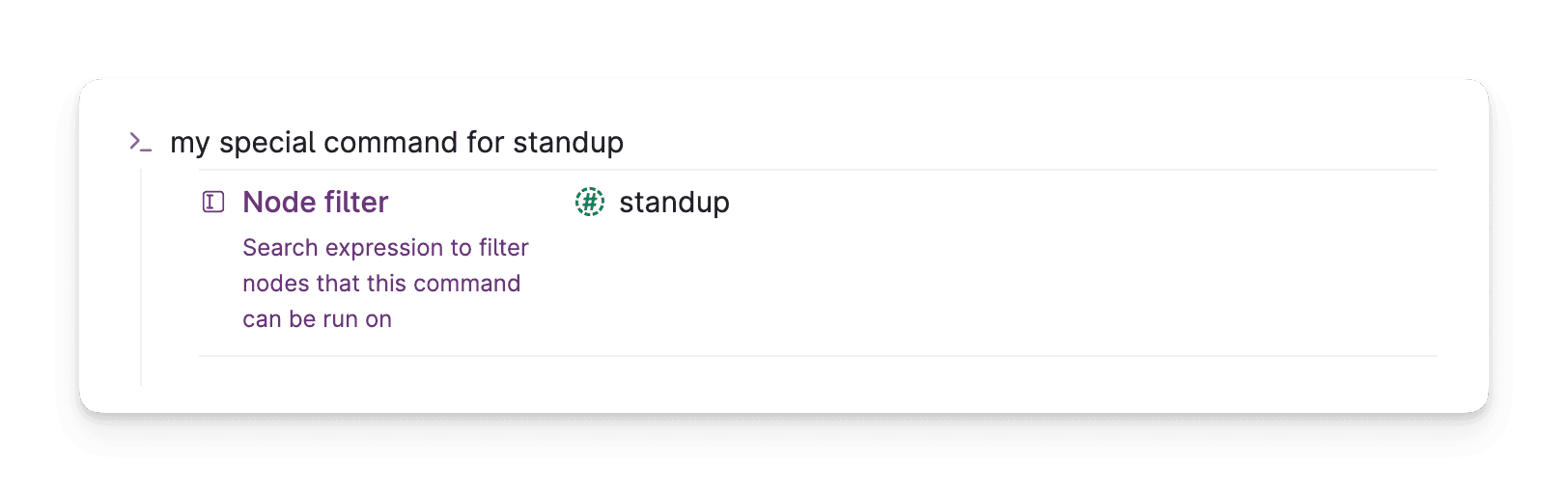
An excluded node will not display the command, neither from the command line nor as a button.
Because a node filter is a search query, you build conditions the same way you would in a search node. The and operator sits at the start of the query, and adding more conditions gives you or and not toggles to combine or negate them. To add a not condition inline, type > and then start typing not.
The most reliable way to build a filter with several conditions is to draft it as a regular search node first, get the conditions right, then drag that query into the node filter. Drag it rather than copy it, so you move the query itself instead of leaving a reference behind.
Node context
By default, a command's actions run on the node you trigger it on. Node context lets you point them at a different node, so a command run on one node can act on a related one.
Set it like any other parameter (type > then Node context) and give it a value:
PARENTruns the command's actions on the parent of the node you trigger it onGRANDPARENTtargets the level above that- a reference to a specific node targets that node directly
For example, a command placed on a child node can set a field on its PARENT, so triggering it from the child updates the parent instead.
Finding all commands
You can find all commands in your workspaces by creating a search node and using the keyword operator IS COMMAND. Scope it down to a workspace to only find commands from there.
Trigger commands on node events
You can have commands trigger when child nodes are added or removed from any node. For more, see On child added/removed
You can also have commands trigger when a supertag is added or removed from any node. For more, see On added/removed
All Tana Outliner commands
Insert a cloned copy of a node
Can be used to emulate template behaviour, add a new time log entry to a time log etc
Insert relative date
System command that inserts a date using the relative date string.
Move node
System command that moves a node
Add tags
System command for adding a tag to a node.
Remove tags
System command for removing a tag from a node.
Set field values
System command for setting field values to a field.
Set field values for all children
System command for setting field values to a field applied to all children. Example: Set all children to "status deployed" for a release process.
Remove fields
Removes the specified field
Set done status
Sets the done status of a node to a particular setting
Set view definition
Takes the same information that is stored as a custom view on a node - can be used to configure which columns are shown, sorting, filtering, grouping etc.
Set view type
Can set node to outline, cards, table, list, tabs, side menu, and calendar view.
Show alert
Displays a user alert
Ask for user confirmation
Displays a user confirm command, and halts execution if user does not confirm
Run commands in parallel
Takes a list of commands as input, and runs them in parallel (default is sequential)
Run a command line command
Let's you run any command from the command line. Does not work well with multi-stage prompts
Run commands on all children
Let's you run a command on all children.
Run commands on all children currently visible in the view
Let's you run a command on the children based on what currently is in view. It respects the current search query (which may not be saved) and filtering of results.
All AI Commands
For commands that use AI, see here: AI command nodes
All parameters
Node filter
- Description: Search query to filter nodes that this command can be run on
- Source: Tana Outliner
Node context
- Description: Node context for commands - defaults to node the command is run on
- Source: Tana Outliner
Field dependencies
- Description: References to other fields on the same node. If any of these fields are empty, and have AI turned on, then their AI prompts will be run before evaluating this command.
- Source: Tana Outliner
Target node
- Description: Defines what Tana Outliner object to insert the result into. Can be a reference to a template node, or a field reference
- Source: Tana Outliner
URL
- Description: URL, processed using title expressions
- Source: Tana Outliner
Insert output strategy
- Description: Default is adding as a child (except in fields, where default is replace)
- Source: Tana Outliner
Payload
- Description: Payload type
- Source: Tana Outliner
API method
- Description: Defaults to GET
- Source: Tana Outliner
Parse results
- Description: Defaults to no parsing (raw)
- Source: Tana Outliner
Authorization header
- Description: For authentication (for example "Bearer ....")
- Source: Tana Outliner
Headers
- Description: API headers, must start with a word and a colon, like "Authorization: ..."
- Source: Tana Outliner
Avoid using proxy
- Description: For local sites, or where you know there is no CORS issue
- Source: Tana Outliner
Tags
- Description: Define supertags
- Source: Tana Outliner
Metaprompt to enhance prompt with GPT-3
- Description: n/a
- Source: Tana Outliner
View definition
- Description: View definition to apply to node
- Source: Tana Outliner
View type
- Description: Set view type by picking from dropdown.
- Source: Tana Outliner
Fields to set
- Description: Fields to set, and optionally values
- Source: Tana Outliner
Add each field underneath this parameter and type the value into the field itself, the same way you fill in a field on a node. A field you add but leave empty clears that field on the target node. To add your value alongside whatever is already there instead of replacing it, also add the Append field values parameter and set it to Yes.
Commands
- Description: Commands to execute
- Source: Tana Outliner
Tag candidates
- Description: Define supertags that become candidates
- Source: Tana Outliner
Fields to remove
- Description: Define fields that, if present, will be removed.
- Source: Tana Outliner
Move node target
- Description: Define node to be moved. Reference to a specific node, field or a dropdown option
- Source: Tana Outliner
Remove reference after moving node
- Description: Will remove the reference after moving node
- Source: Tana Outliner
Move original node
- Description: By default, if you run the command on a reference, the reference will be moved. This option can force the original node to be moved.
- Source: Tana Outliner
Done status to set
- Description: Gives you done state options to set. There are four options to choose from:
- Node has no checkbox
- Done
- Not done
- Toggle done status
- Source: Tana Outliner
Command to run
- Description: Write out the commands you want to run.
- If you're uncertain about how a command is written out, navigate to it through the command line, create a custom shortcut, and go to
Settings > Private keyboard shortcutsto the shortcut you just made and expand it. You'll find the command written out in a node.
- If you're uncertain about how a command is written out, navigate to it through the command line, create a custom shortcut, and go to
- Source: Tana Outliner
Look for children in field
- Description: Looks for children in a specific field, instead of the node. Add reference to field definition.
- Source: Tana Outliner
Relative date string
- Description: Write out a date string like this week, in two months, etc. Interpreted with prompt expressions.
- Source: Tana Outliner
Reference date
- Description: Either a date, or use Lookup field to reference a field. If reference date is May 1, and relative date is in two weeks, the output will be May 15th.
- Source: Tana Outliner
Date/time granularity
- Description: Allows you to specify the granularity of the date object. Use the dropdown to set year, month, week, day, hour, minute, second, or millisecond.
- Source: Tana Outliner
Set only start or end of date
- Description: Allows you to specify whether you want to set a Start or End date/time.
- Source: Tana Outliner