


Overview
Tana Outliner has many different types of nodes, and icons to reflect what these types are. Below is a list of all the different types you may encounter.
Content nodes
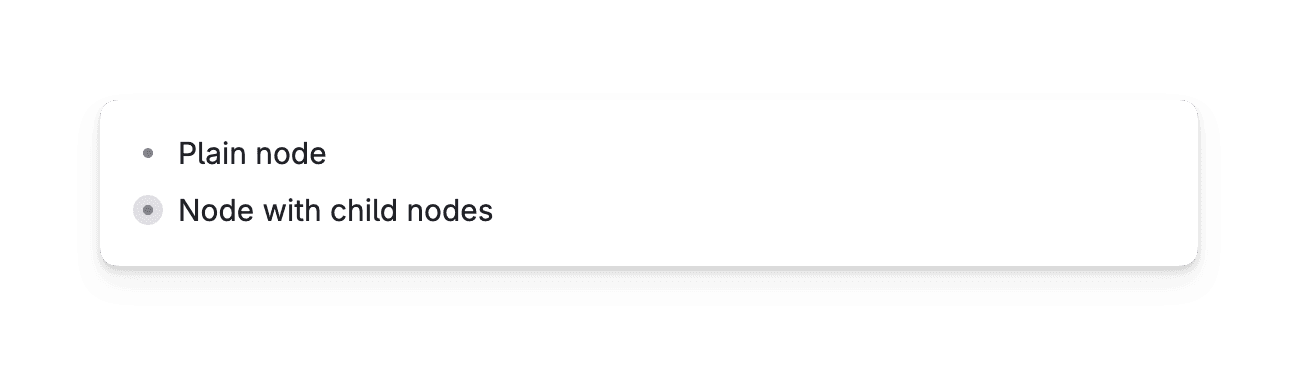
Plain node
Plain nodes show up as dark grey, solid dots.
Plain nodes with content show up with a lighter halo around them.
Related doc: Nodes and References
Reference
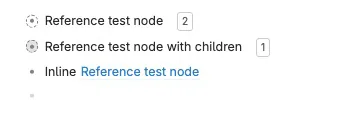
References show up with dashed outlines. References with children have a shaded background.
You can also have an inline reference or a link to a node, signified by blue linked text.
Related doc: Nodes and References
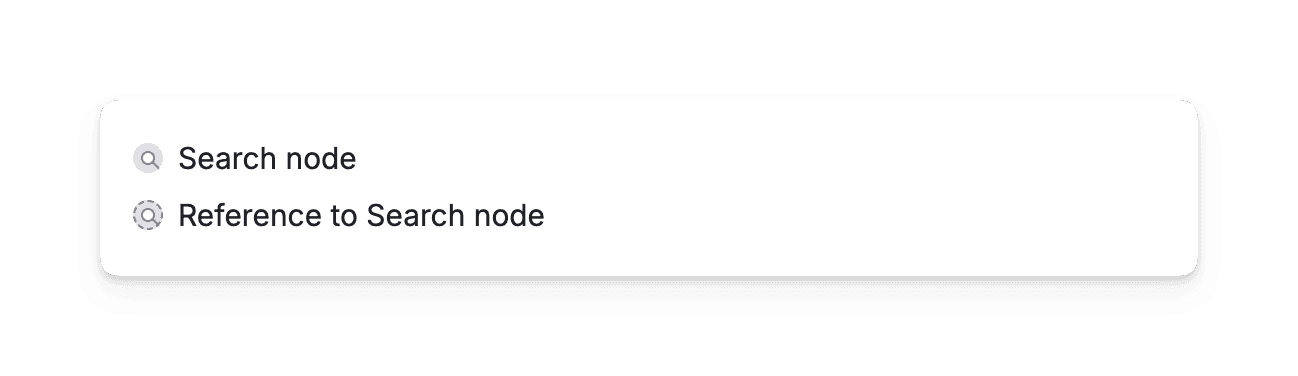
Search node
Search nodes show up with a magnifying glass in the node.
Related doc: Search nodes
Entity nodes
Since Tana Outliner is a knowledge graph, and every note is a node, Tana Outliner is treating some top level nodes as an "Entity". This is the equivalent to a "page" or "document" in other tool. This is a mechanism to avoid surfacing individual nodes that are part of a bigger "document" in searches where it wouldn't make sense to show them out of context.
A node is considered an entity if:
- It has a supertag
- It lives on top level in the library (direct child of the library)
- Is was captured from mobile ap
Entities can be used to build search nodes, and are used for the Recents view in the sidebar. You can also use it to build your own live searches.
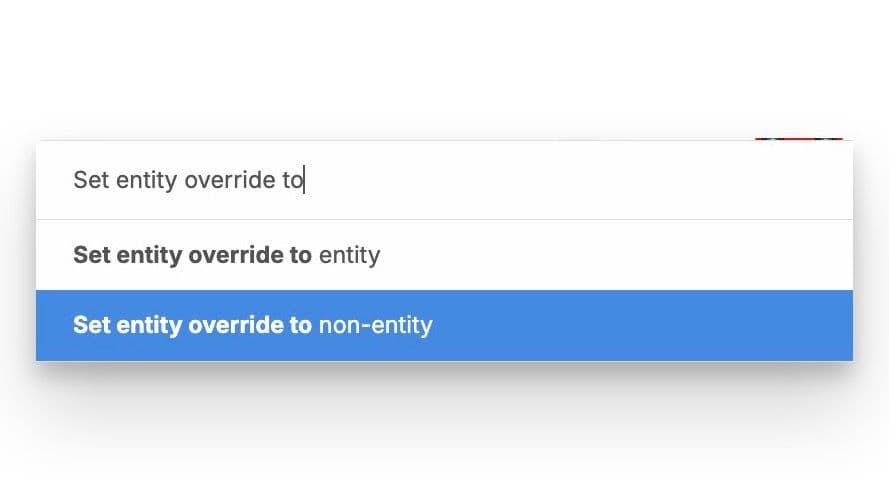
If you have a node that is not treated as an entity, but you would like it to be, you can use the command Set entity override to
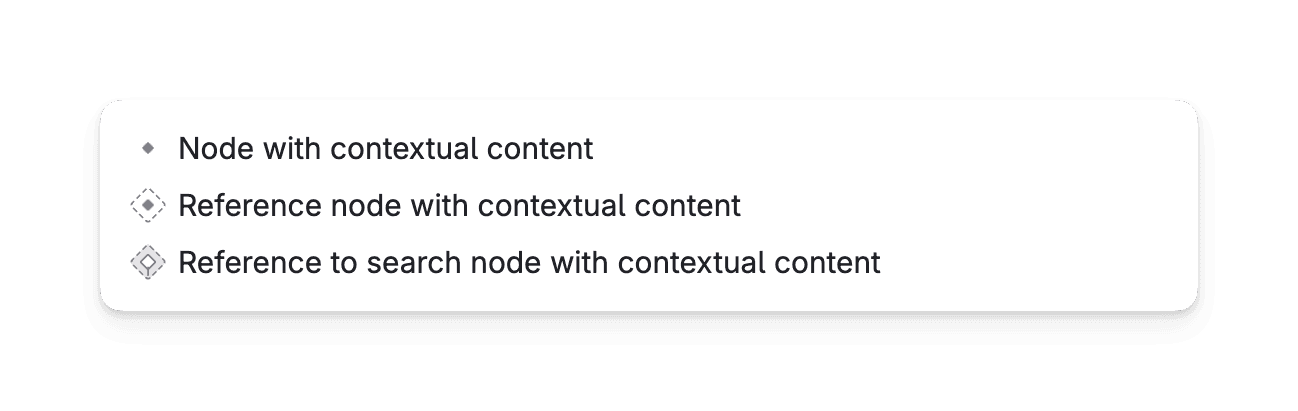
Node with contextual content
Nodes with contextual content show up as diamond shaped.
Related doc: Nodes and References
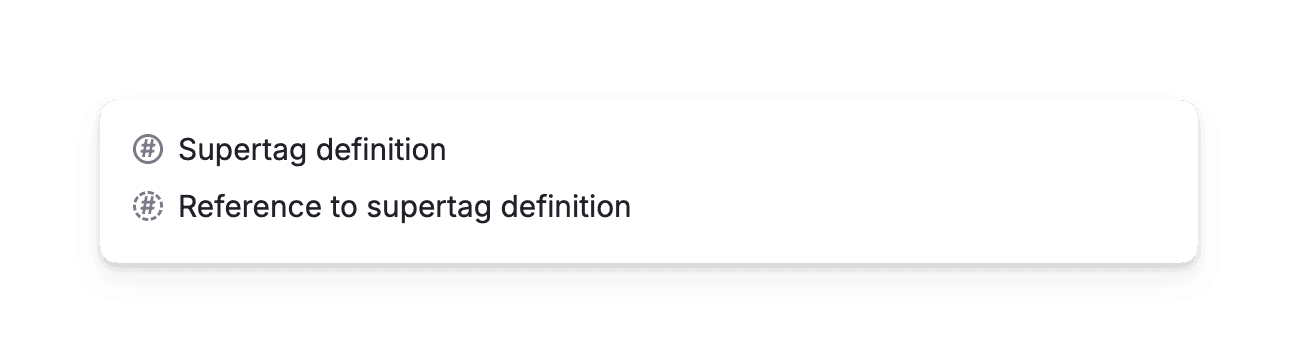
Supertag definition
Supertag definitions show up as a hashtag inside a circle.
Related doc: Supertags
Field definition
Many field definitions show up as a square icon with the various symbols signifying different field types. Others have just the symbol of their types with no framing square.
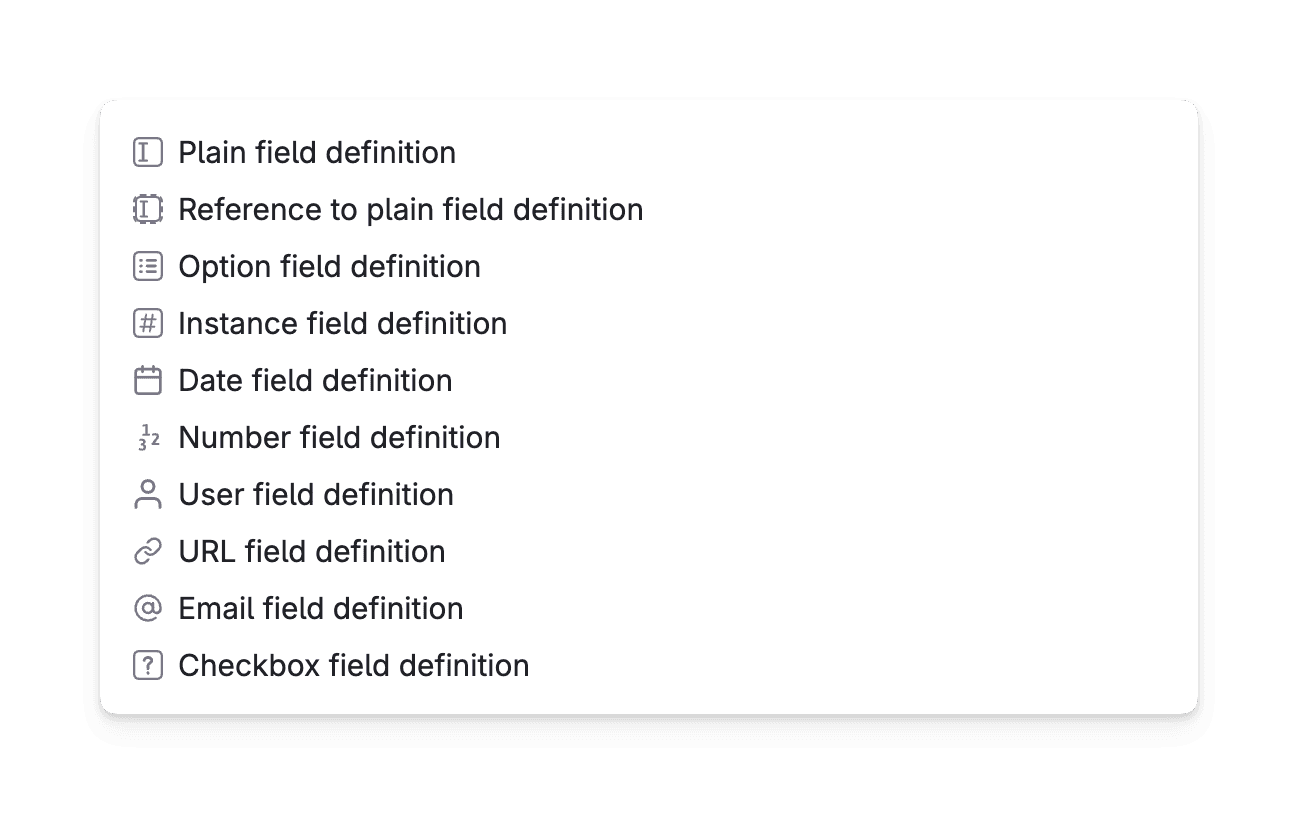
Related doc: Fields
Fields
Fields show up similarly as field definitions, but with an empty node as placeholder for entering a value.
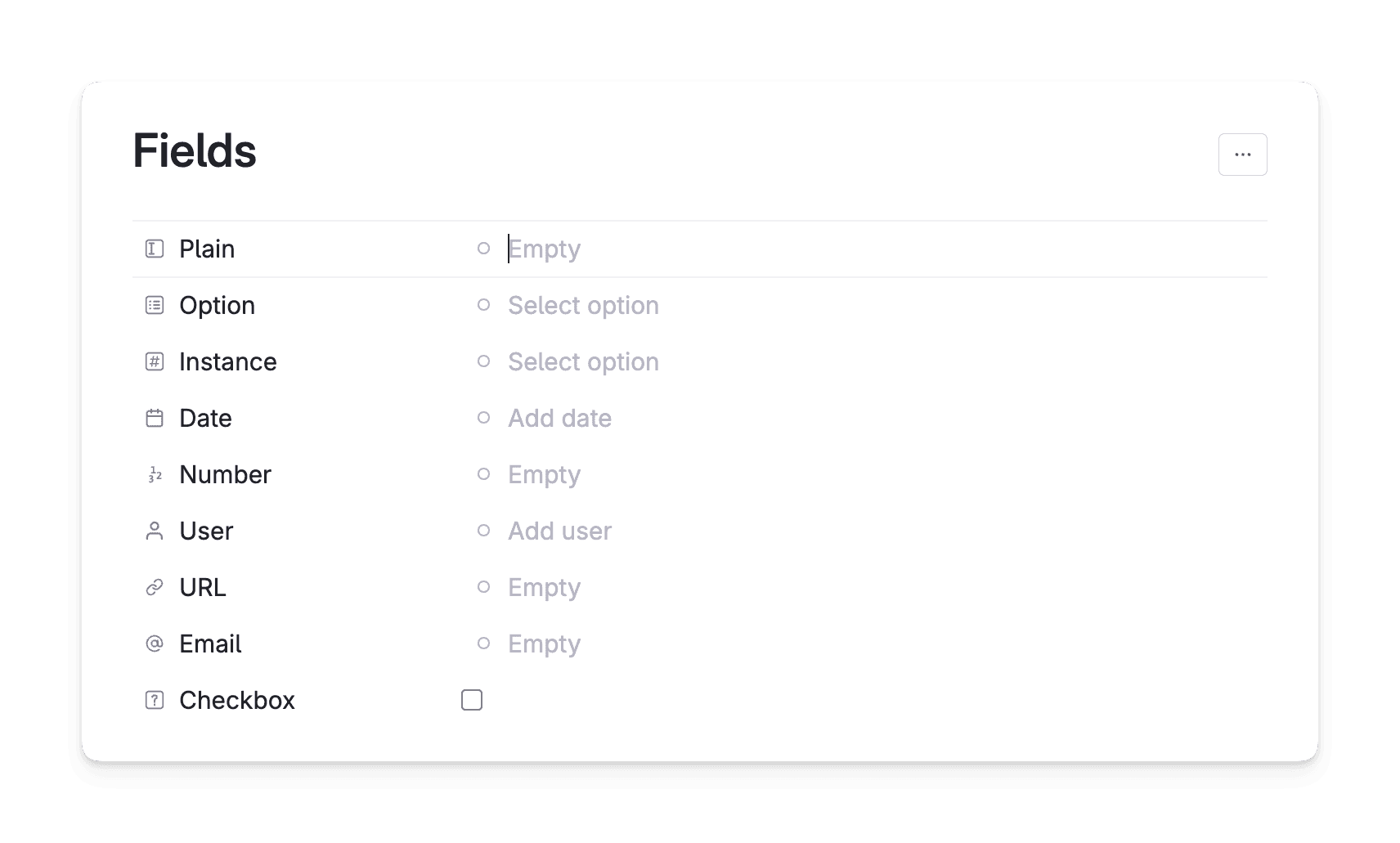
Related doc: Fields
Command node
A command node shows up as a typical command line symbol >_ , and inside a dashed circle as a reference.
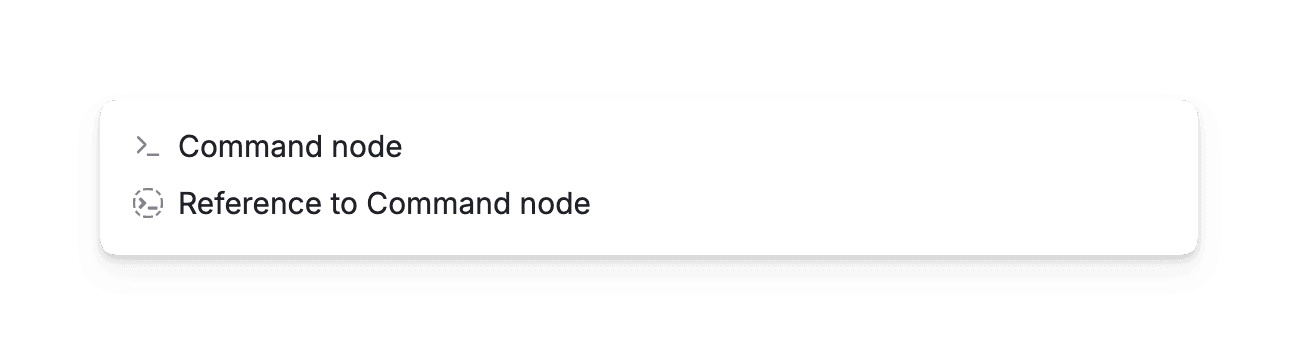
Related doc: Command nodes, AI command nodes
URL node
A URL node shows up with an external link icon.
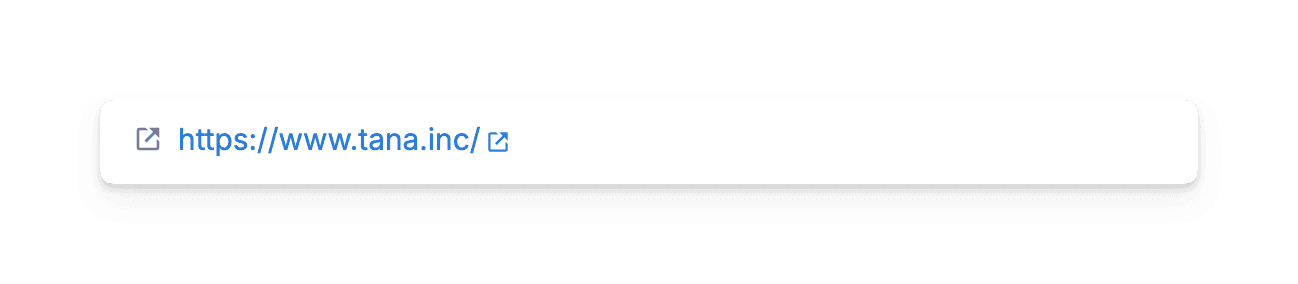
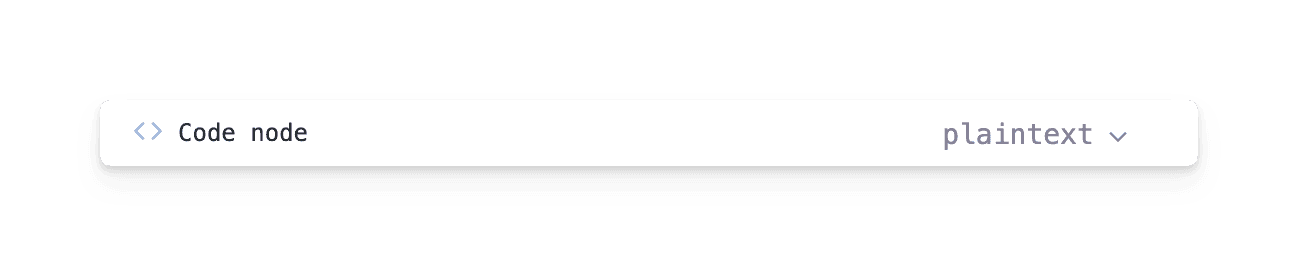
Code node
A code node shows up as two angled brackets.
Workspace node
A workspace node shows up with a rainbow halo.

Related doc: Workspaces
Audio node
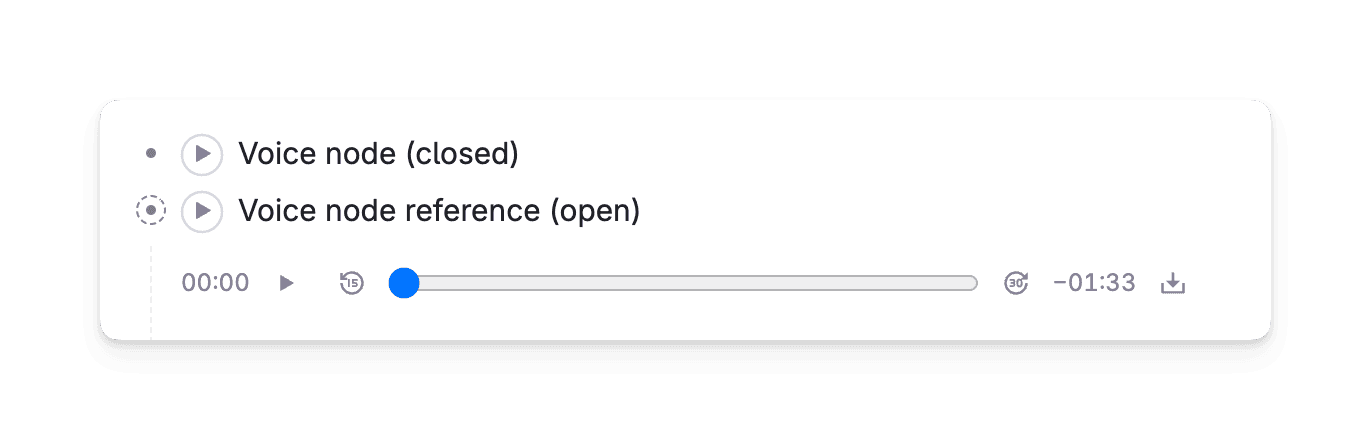
A node with an audio file looks like a regular node with a play button next to it. Expand it, and you will see more controls for playback.
Related doc: Voice memo
Video node
A node with a video file looks like a regular node with content that auto-expands to show the video with playback controls.
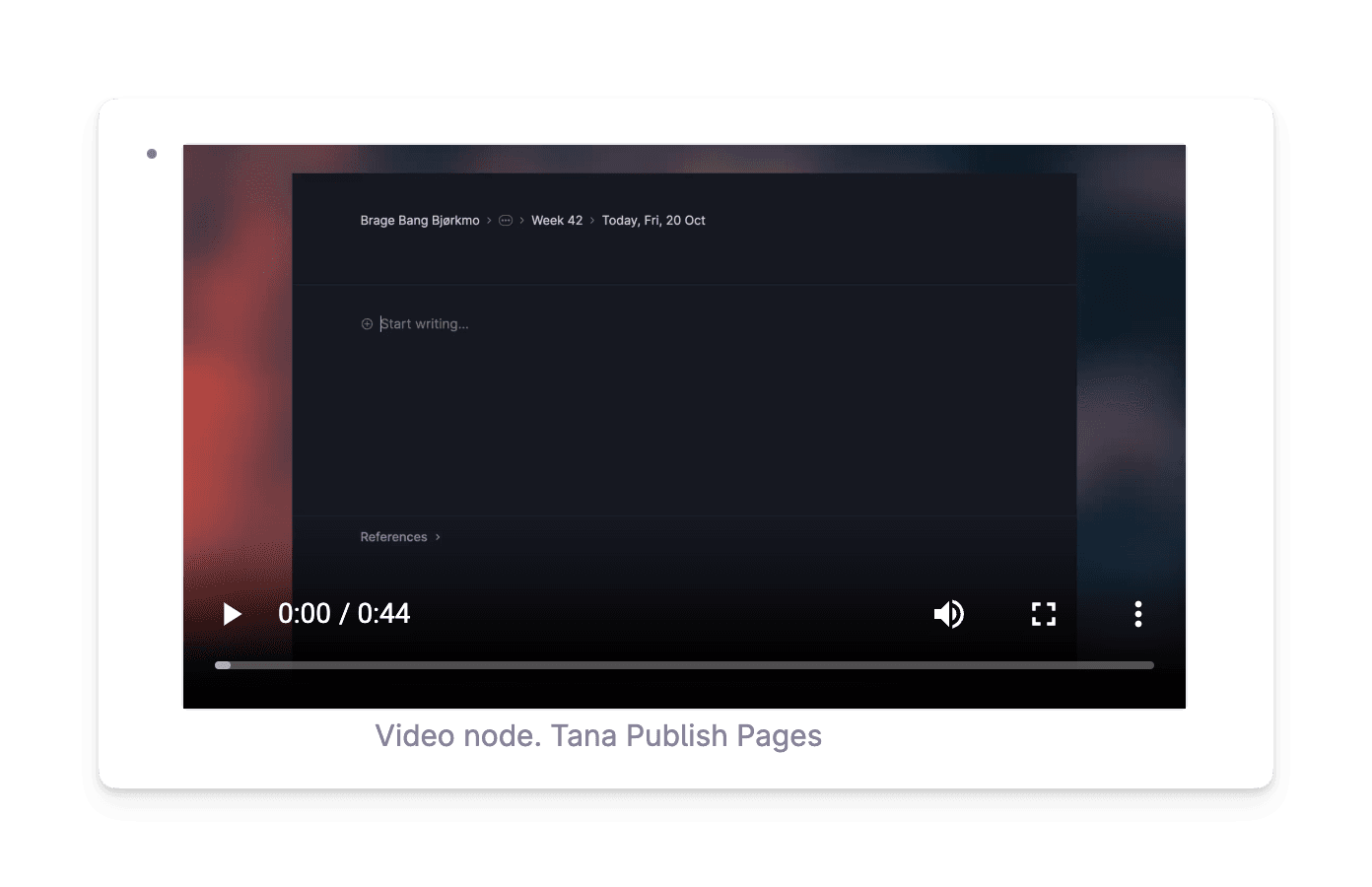
Image node
A node with an image looks like a regular node with content that auto-expands to show the image.

Node with embedded links
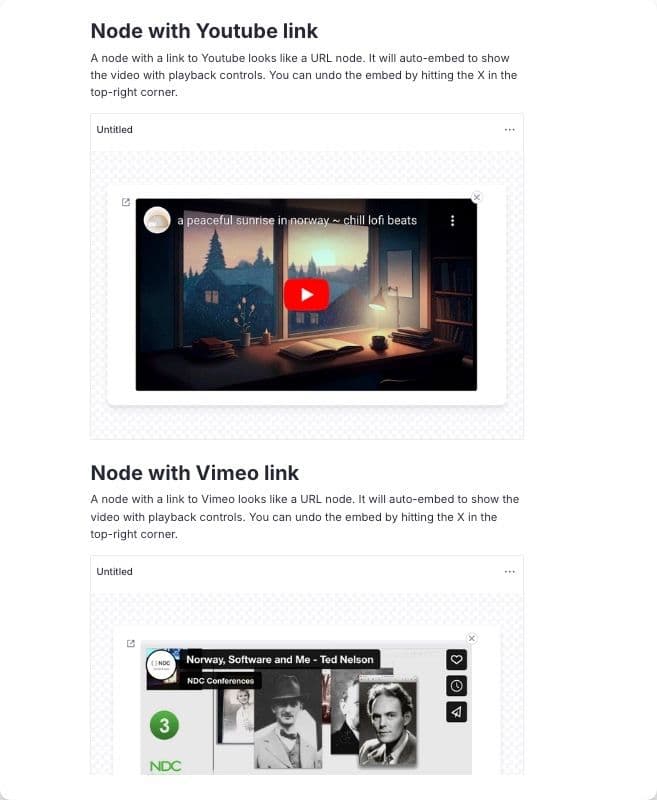
A node with a link to Youtube, Vimeo or Loom looks like a URL node. It will auto-embed to show the video with playback controls. You can undo the embed by hitting the X in the top-right corner.

Nodes with links to Figma, Spotify or X.com will also auto-create an embedded version. looks like a URL node.Spotify links will auto-embed to show the playlist or album with playback controls. X.com links will let you click the reply button to open a reply modal in the browser on x.co.

Unavailable node
A node with a prohibited bullet. Hover over the node to get more information.

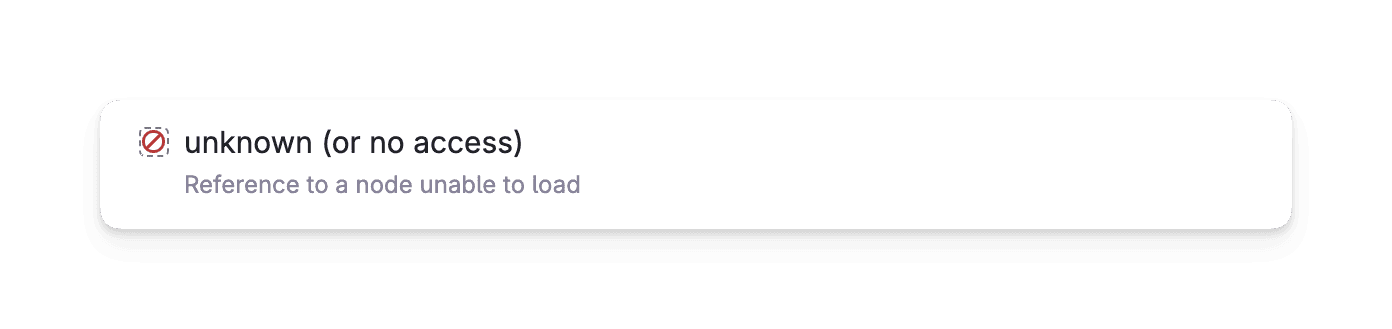
Deprecated: Unknown (or no access) node. Showed a dashed box node with a no access sign. Means that the source that used to be referenced is unable to load / no longer accessible.
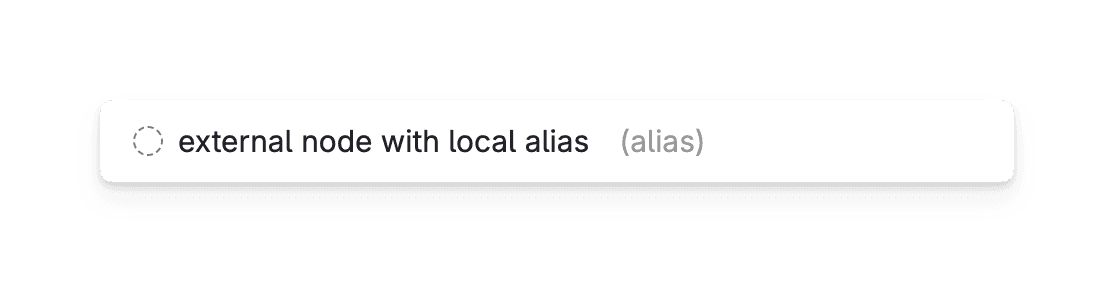
External alias node
A dashed circle with no bullet, and the words "(alias)" at the end. This is a reference with no available content except the name, due to access restrictions.
Function nodes
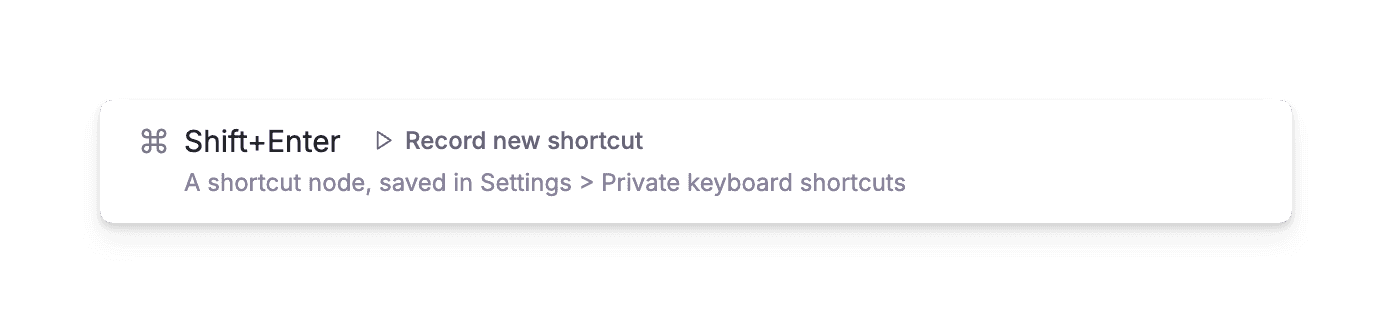
Keyboard Shortcut
In Settings > Private keyboard shortcuts, custom shortcuts show up with the command (for Mac) / place of interest / Bowen knot symbol.