



Learn
Documentation for Tana Outliner, the knowledge graph with an outline editor.
Get started


The ultimate Tana Outliner starter guideTana Outliner is one of the most powerful knowledge management tools I have used. But sometimes all those powerful features can overshadow just how simple it can be to get started. And I guarantee that most people are overthinking it from the very start.


Editor and structure
Outline editorThe outline editor is where you write in Tana Outliner. You organize content by nesting and indenting bullet points, and you can expand, collapse, and rearrange them freely. Zoom into any bullet point and it becomes a full page. There are no separate documents or files.
Nodes and referencesEvery bullet point in Tana Outliner’s outline is a node. Nodes are the core building block of everything in Tana Outliner. The same node can show up in multiple places as a reference. Edit it anywhere and every reference updates, so your information stays current everywhere it appears.
Node typesEvery bullet point in Tana Outliner is a node, but nodes come in different types. Each type has a distinct bullet icon so you can tell them apart at a glance: content nodes, references, search nodes, command nodes, fields, and more.
Workflows
All guides


Knowledge graph
SupertagsSupertags turn a node into a typed object with a template of fields. All nodes with the same supertag form a collection you can search, filter, and view as a table. Supertags are how you define the types of things in your workspace and give them consistent structure.
FieldsFields are named attributes on a node. Each field has a type (text, date, number, URL, options) that determines what values it accepts. When you add fields to a supertag template, every node with that supertag gets the same fields automatically, making your data sortable, filterable, and queryable.
ViewsViews control how a node’s children are displayed. The same data can be shown as an outline, table, cards, calendar, list, tabs, or side menu. You can filter, sort, and group by fields. Switching views does not change the underlying data.
Live sessions
All sessions
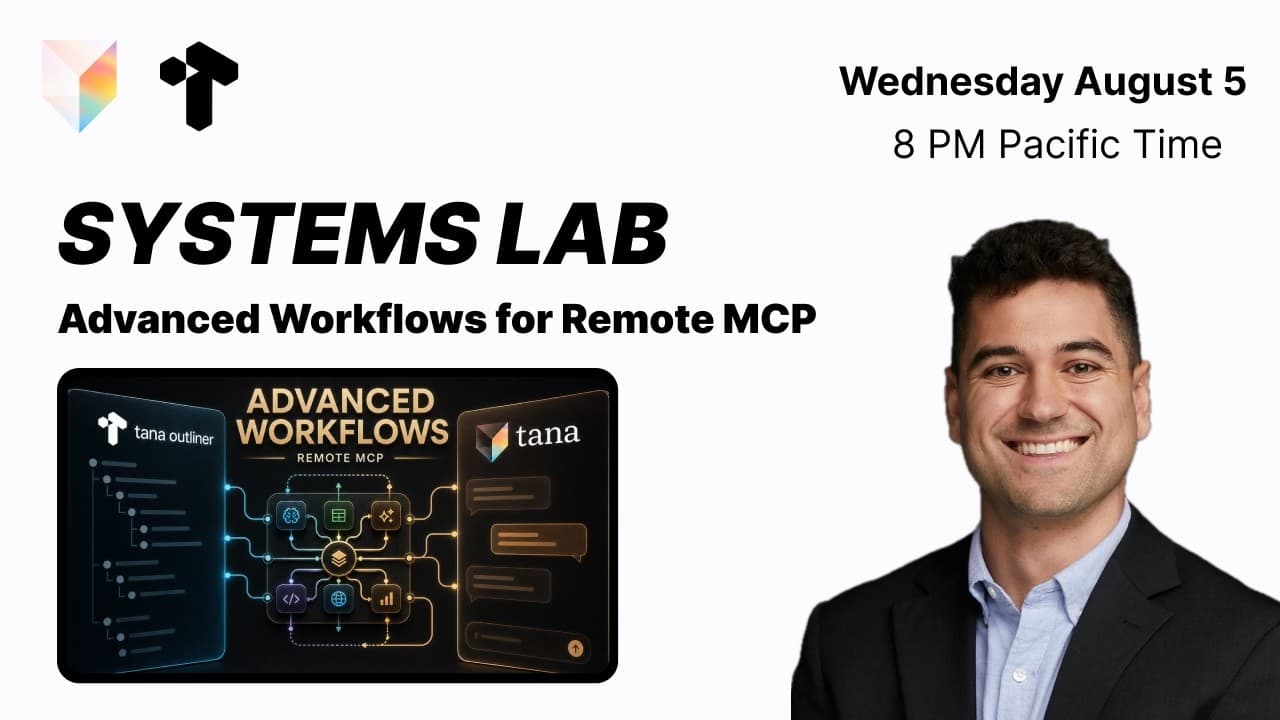
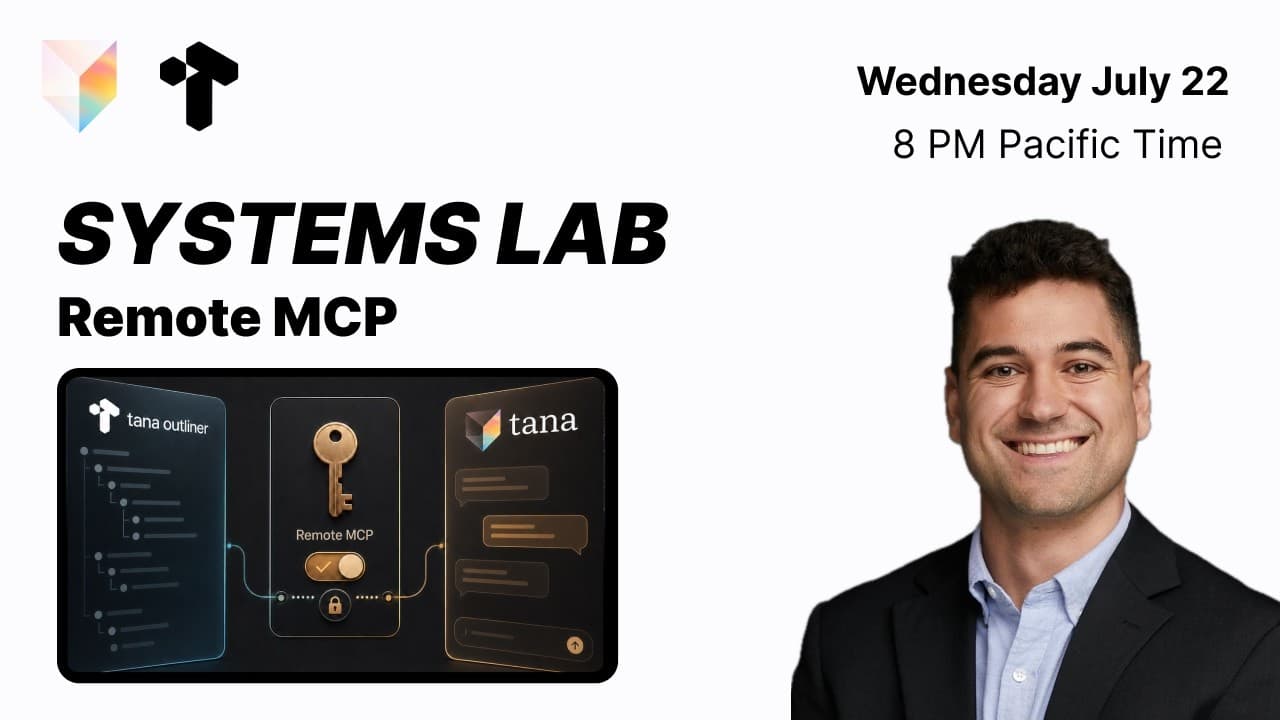
Tana Outliner Systems Lab: Portable knowledge coreKeep structured knowledge in Tana Outliner and reusable instructions in GitHub, so AI tools like Claude and ChatGPT can work with your system wherever you are.
AI and automation
Tana AITana Outliner includes AI across the product: meeting transcription without a bot, chat that can reference your notes, image generation, voice memos, and live dictation. AI credits are included with paid plans.
AI meeting notetakerA built-in notetaker in the Tana Outliner desktop app that records audio from your computer, transcribes it in real time, and generates a summary when the meeting ends. It works for video calls, in-person meetings, lectures, and interviews without adding a bot to the call. Supports over 60 languages with automatic detection.
AI ChatAI chat lets you have a conversation with an AI model directly inside Tana Outliner. Press Space below any note to start a chat with that note as context, or open the AI chats sidebar to start a standalone conversation. You can pull in specific notes as context by typing @ to reference them.
Templates
All templates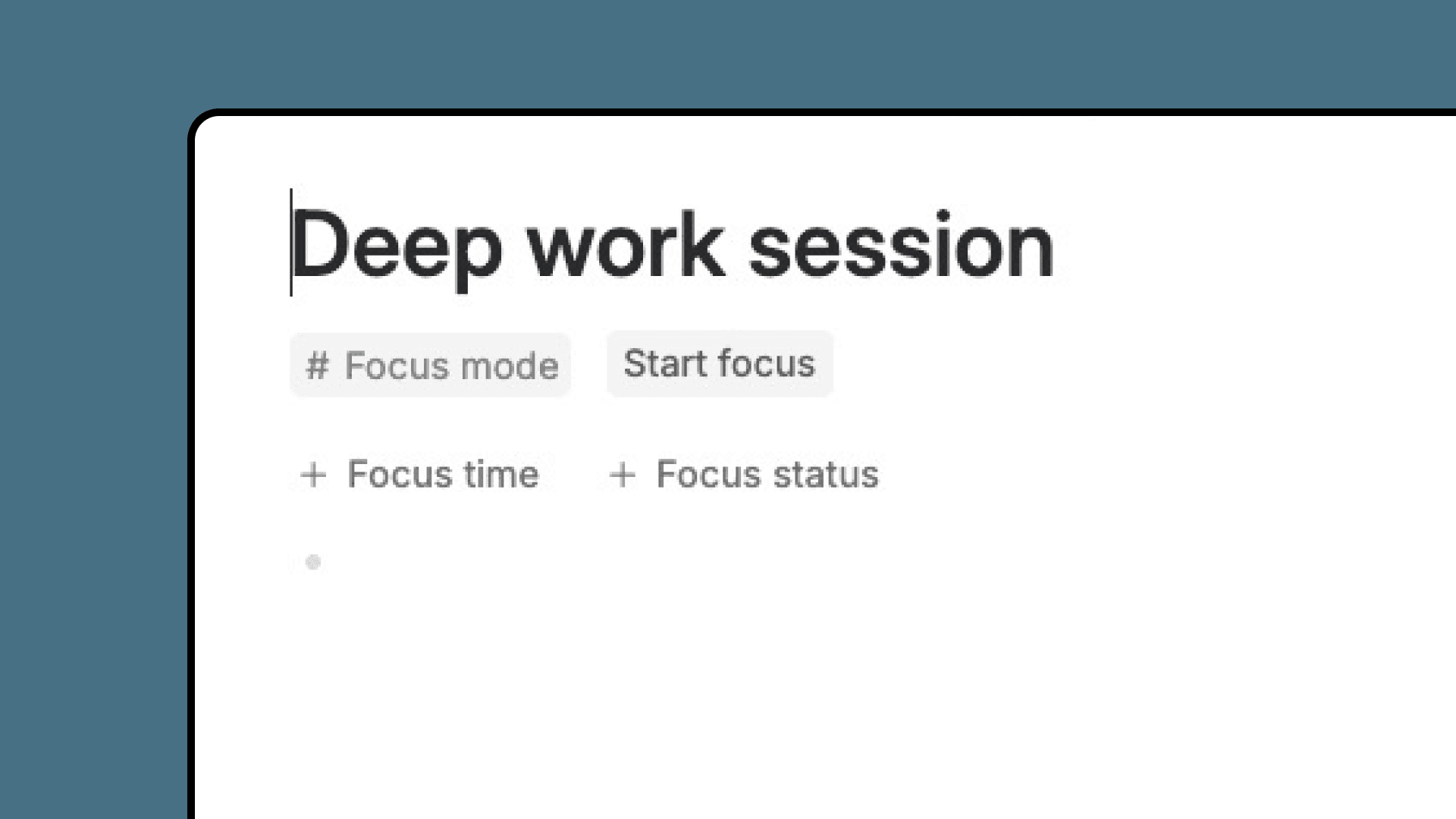
Focus modeEnter focus mode on any node. Your workspace transforms to help you concentrate. When you’re done, exit focus mode and see exactly how long you focused. Build a record of deep work across all your projects.
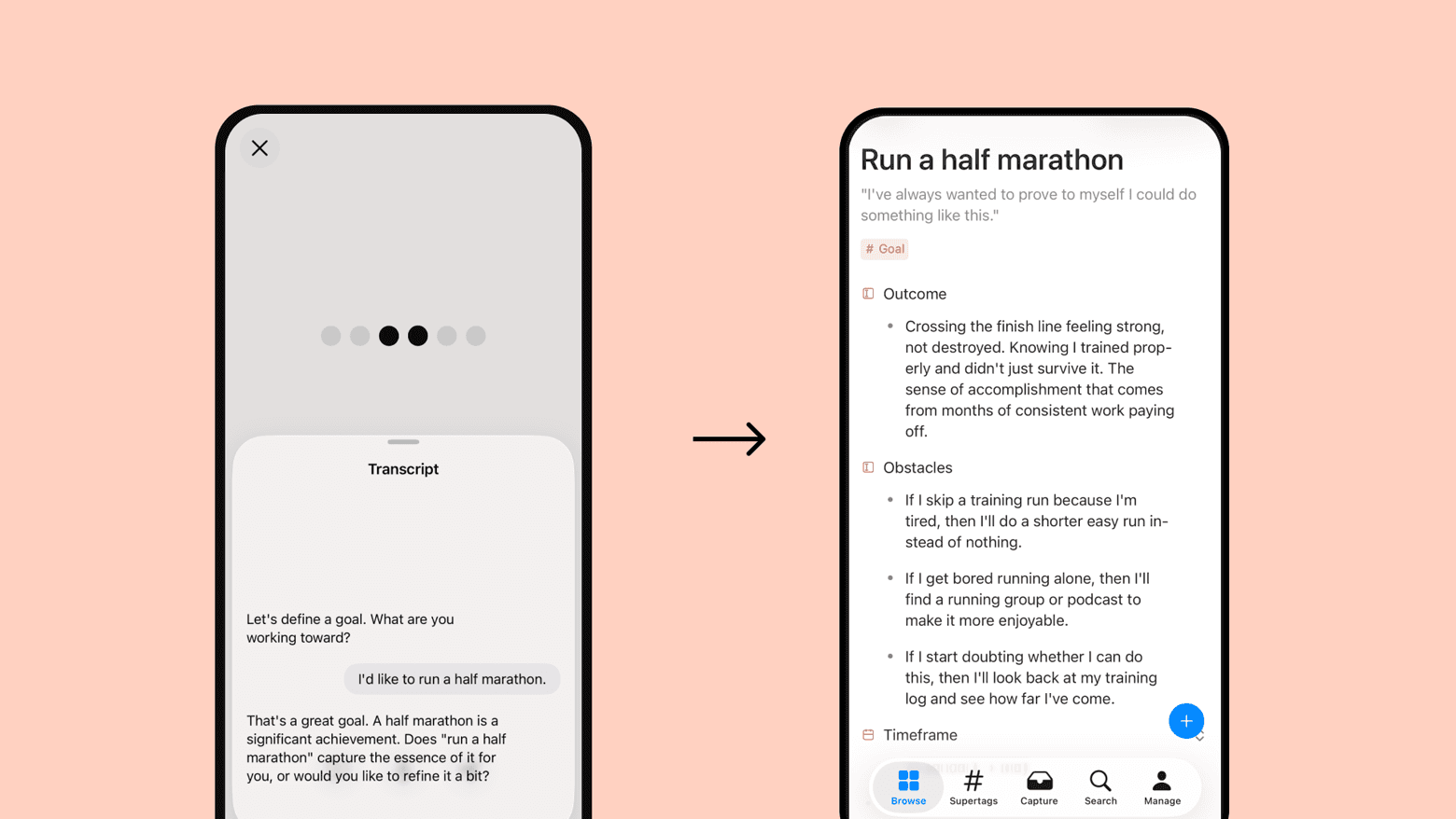
Goals that stickThe Goals template helps you define meaningful goals and stay connected to them over time. Voice-enabled for natural goal capture, with an AI agent to check in on progress, refine obstacle plans, and find your next action.
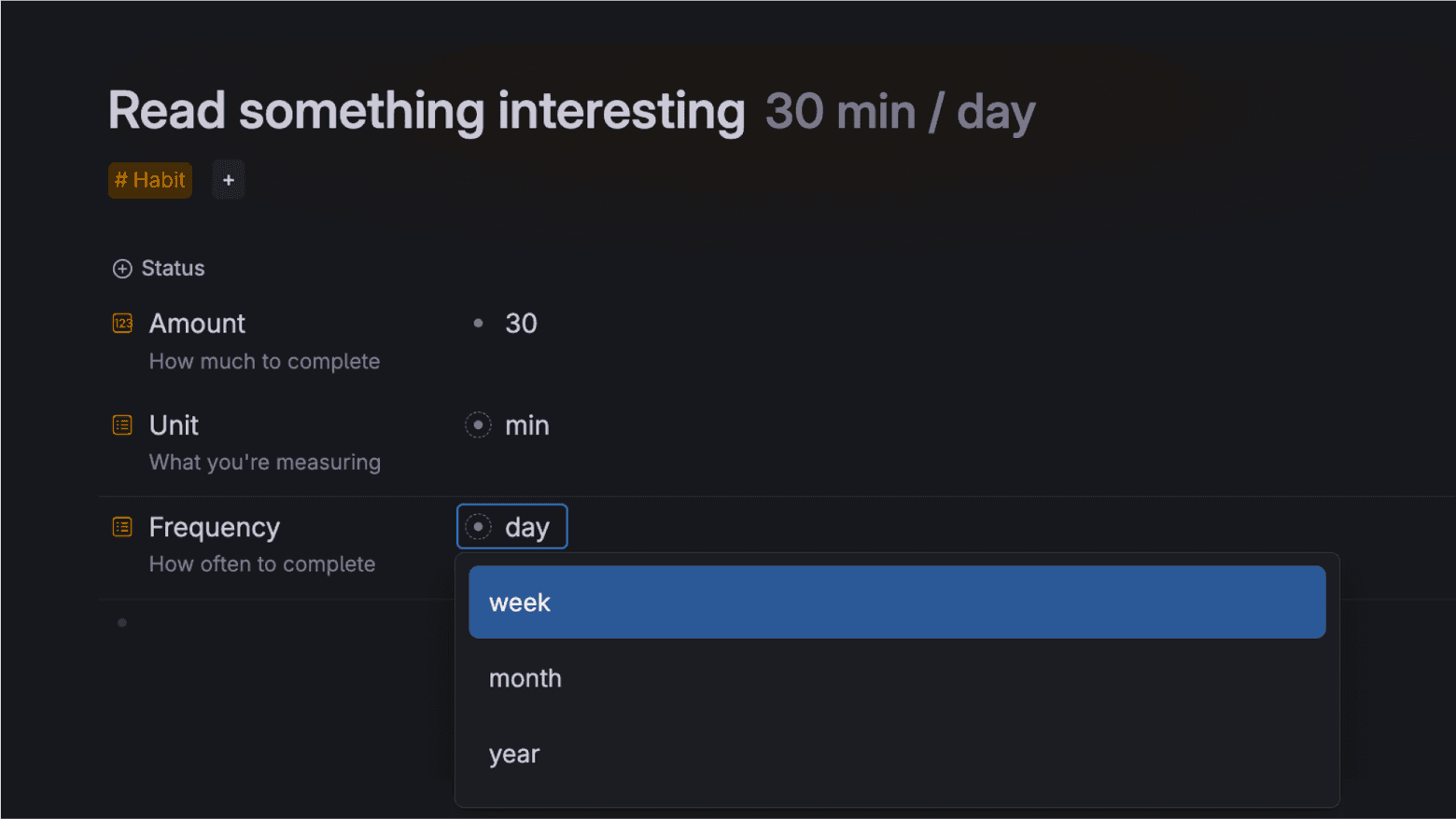
A habit tracker that keeps you consistentMost habit trackers fail because they live outside your normal workflow. Tana Outliner’s habit tracking template changes the game by embedding powerful tracking functionality directly into your daily notes. Stop switching between apps and start building consistent habits.
More features
What’s new
See all- NewCode documents. Code you paste, import or add with "Create code document" becomes a code document, with a code editor, syntax highlighting and a language picker.
- NewReadable workspace export. Export your workspace as readable Tana Intermediate Format JSON, which you can import into a new workspace. Use "Export workspace as JSON" and choose this format or the full Tana JSON export.
- NewChoose the AI model for text-processing commands. Pick the AI model and reasoning level for a text-processing command, such as one that writes meeting summaries, by adding the "AI model" parameter to the command. Choose Default or clear the field to use Tana's fast model again; when the field is empty, the menu names the model the command actually uses.
- ImprovedAutomatic workspace timezones and a Set timezone command. Set the workspace Time Zone to Auto to follow the device you are using; new personal workspaces start with Auto. Today, searches and daily notes use the workspace timezone, while calendars and times in text use your display timezone. Change the timezone of a saved date or date range with "Set timezone" in the command line (Cmd+K on macOS, Ctrl+K on Windows and Linux).
- ImprovedPreview date changes as you edit. When you edit a date or its timezone, your document shows the new date while you edit. It is saved only when you confirm.
- ImprovedPer-supertag field names and descriptions. Give a field its own name and description on one supertag from the field's settings icon, or with "Configure field on #tag" in the command line. You can also hide the default description. Published pages and the Article view show them too. To keep field guidance visible beneath field names instead of on hover, turn on "Show field descriptions inline" in Preferences.