



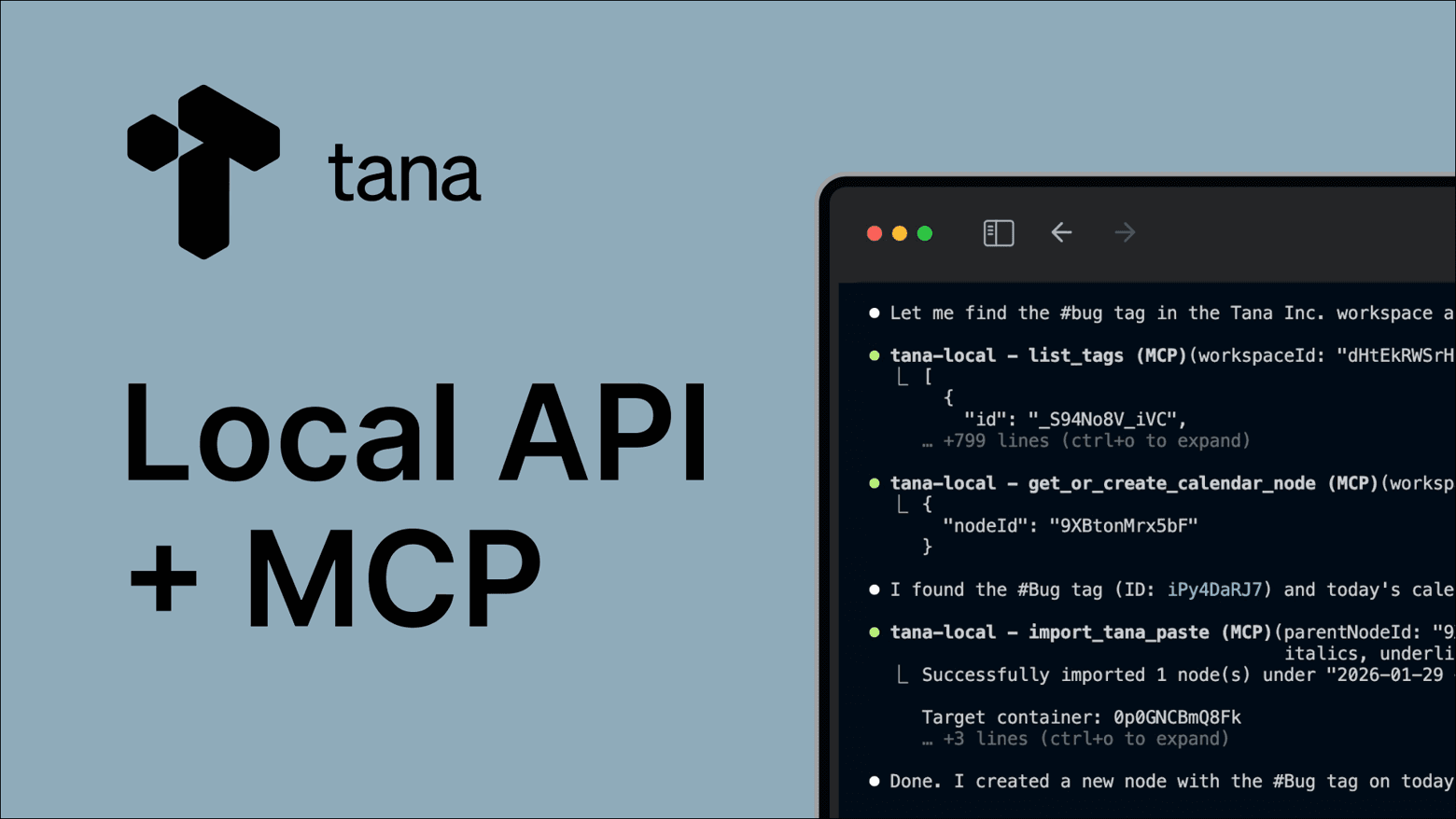
Tana Outliner has a local MCP server that runs on your computer inside the desktop app. MCP (Model Context Protocol) is a standard that lets external tools access your data and perform actions on your behalf. Because this is a local server, only MCP clients that can connect to servers on your machine will work. Once connected, an MCP client can search your workspace, read nodes, understand your supertag schemas, and create or modify content.
What this enables
Claude Code, Codex CLI, and Gemini CLI are built for complex, multi-step work. Unlike a simple chat interface, they can chain together multiple operations: searching, reading, reasoning about what they find, then taking action.
When connected to Tana Outliner, this means they can:
- Run multiple searches to gather information, then synthesize what they find
- Look up how your supertags are structured, then create content that matches
- Read through nodes, identify patterns, and suggest changes
- Build searches and dashboards based on your actual tag system
- Process batches of items, applying tags or updating fields
The key thing to understand: the agent doesn't automatically know what's in your workspace. It uses MCP tools to actively fetch information, read content, and learn your schema. You'll see each tool call as it happens, so you always know what it's doing.
Getting started
This tutorial walks through setup with Claude Code, but the concepts apply to any MCP client that supports local servers over HTTP. See the Local API/MCP documentation for setup instructions for other tools.
Make sure Tana Outliner is running
The local MCP server is enabled by default and runs whenever the Tana Outliner desktop app is open, so there's nothing to switch on.
- Open the Tana Outliner desktop app
The server listens for MCP connections while Tana Outliner is running. It lives inside the app, so the connection only works while Tana Outliner is open.
Install an MCP client
MCP clients connect to MCP servers to access their tools. These terminal-based clients support Tana Outliner's local MCP:
- Claude Code (Anthropic)
- Codex CLI (OpenAI)
- Gemini CLI (Google)
This tutorial uses Claude Code. The commands below download and install it on your computer.
If you're new to terminal: on Mac, open the Terminal app (in Applications → Utilities). On Windows, open PowerShell. Paste the command for your system and press Enter.
Mac or Linux:
curl -fsSL https://claude.ai/install.sh | bashWindows (PowerShell):
irm https://claude.ai/install.ps1 | iexOnce installed, you'll have a claude command you can run from any terminal window.
Connect to Tana Outliner
Now we need to tell Claude Code where to find Tana Outliner's MCP server. Tana Outliner can configure this automatically:
- In Tana Outliner, go to Menu → Options → Local API settings
- Enable the Claude Code option
This writes the server address to Claude Code's configuration file. The connection uses HTTP on localhost, which is why Tana Outliner needs to be running for it to work.
Using a different MCP client? See the Local API/MCP documentation for connection instructions.
Verify everything works
Open a new terminal window (important: use a new window so it picks up the config changes) and start Claude Code:
claudeOnce it loads, ask:
What Tana Outliner MCP tools do you have access to?
Claude should list tools like search_nodes, read_node, import_tana_paste, list_tags, and others. If you see these, the connection is working. Each of these tools lets Claude interact with your Tana Outliner in a specific way.
You can also ask Claude to explain what each tool does, or just start working and watch which tools it chooses for different tasks.
Examples
These examples show what becomes possible when an MCP client can work with your Tana Outliner. Each prompt leads to Claude making tool calls, and you can watch it work through the problem.
Review your week
Have Claude gather information from across your workspace and synthesize it.
Search for all meetings I had this week. For each one, read its contents and show me any action items.
Watch what happens: Claude first uses search_nodes to find nodes with your meeting supertag from this week. Then it loops through them, using read_node on each to get the full content. Finally, it extracts the action items and presents them together.
Now find all tasks that are overdue. Show me what they are and when they were due.
Create a weekly review under today's date summarizing what I accomplished and what's still pending.
For this last one, Claude uses get_or_create_calendar_node to find today's date node, then import_tana_paste to create structured content under it.
Process quick captures
You've been capturing ideas throughout the day, maybe using Tana Outliner mobile's voice chat while on the go. Now sit down and process them.
Show me everything I created today that doesn't have a supertag yet.
Claude uses search_nodes with a date filter and checks for nodes missing tags.
Look at my existing supertags and suggest which ones would fit each of these items. Don't apply anything yet.
This is where the multi-step capability shines. Claude calls list_tags to see your supertags, then get_tag_schema on relevant ones to understand their fields and purpose. It reasons about each capture and suggests appropriate tags.
Apply the #idea tag to the first three items.
Claude uses the tag tool to add supertags to specific nodes.
Build a dashboard
What supertags do I have for tasks? Show me their fields and how they work.
Claude uses list_tags to find task-related supertags, then get_tag_schema to understand their structure.
Create a dashboard with three sections: overdue tasks, meetings this week, and things I created in the last 7 days. Use a sidemenu view.
Claude uses import_tana_paste to create search nodes with the right queries and views, based on your actual tag structure. It knows what fields to filter on because it just looked them up.
Build a slide deck from your notes
Find my notes about our product strategy. Read through them and show me what's there.
Claude uses search_nodes to find relevant notes, then read_node to get the full content of each one.
Create a slide deck from this content. Focus on the key points and make it suitable for a team presentation.
Claude takes what it learned from your Tana Outliner and generates an HTML presentation. It maps your note structure to slides: the main node becomes the title, children become individual slides, nested content becomes bullet points. The result is a standalone file you can open in any browser.
Extend with skills
Skills are reusable instructions that teach MCP clients how to do specific tasks. They follow an open standard that works across multiple tools. When you install a skill, your MCP client gains new capabilities it can use when relevant, or you can invoke them directly with /skill-name.
To install, copy the skill folder to your MCP client's skills directory. For Claude Code:
# Personal skills (available in all projects)
~/.claude/skills/

# Project skills (available in one project)
.claude/skills/
Each skill is a folder containing a SKILL.md file with instructions. Once installed, your MCP client knows when to use them based on what you're asking for.
Troubleshooting
Cannot connect to Tana Outliner: Make sure the Tana Outliner desktop app is open. The server only runs while Tana Outliner is running.
Claude doesn't see Tana Outliner tools: Open a new terminal window and run claude mcp list to see connected servers. If Tana Outliner isn't listed, go back to Tana Outliner's Local API settings and re-enable the Claude Code option.
Tools fail with errors: Check that the workspace you're trying to access is open in Tana Outliner. Some operations require the workspace to be loaded.
Next steps
You now have an MCP client connected to your Tana Outliner. Start by exploring what's in your workspace: ask about your supertags, search for recent content, or have it read through a specific node. The more you use it, the more you'll discover what's possible.
For reference material on all available MCP tools and configuration options, see the Local API/MCP documentation.