



Learn
Documentation for Tana Outliner, the knowledge graph with an outline editor.
Get started


The ultimate Tana Outliner starter guideTana Outliner is one of the most powerful knowledge management tools I have used. But sometimes all those powerful features can overshadow just how simple it can be to get started. And I guarantee that most people are overthinking it from the very start.


Editor and structure
Outline editorThe outline editor is where you write in Tana Outliner. You organize content by nesting and indenting bullet points, and you can expand, collapse, and rearrange them freely. Zoom into any bullet point and it becomes a full page. There are no separate documents or files.
Nodes and referencesEvery bullet point in Tana Outliner's outline is a node. Nodes are the core building block of everything in Tana Outliner. The same node can show up in multiple places as a reference. Edit it anywhere and every reference updates, so your information stays current everywhere it appears.
Node typesEvery bullet point in Tana Outliner is a node, but nodes come in different types. Each type has a distinct bullet icon so you can tell them apart at a glance: content nodes, references, search nodes, command nodes, fields, and more.
Workflows
All guides


Knowledge graph
SupertagsSupertags turn a node into a typed object with a template of fields. All nodes with the same supertag form a collection you can search, filter, and view as a table. Supertags are how you define the types of things in your workspace and give them consistent structure.
FieldsFields are named attributes on a node. Each field has a type (text, date, number, URL, options) that determines what values it accepts. When you add fields to a supertag template, every node with that supertag gets the same fields automatically, making your data sortable, filterable, and queryable.
ViewsViews control how a node's children are displayed. The same data can be shown as an outline, table, cards, calendar, list, tabs, or side menu. You can filter, sort, and group by fields. Switching views does not change the underlying data.
Live sessions
All sessions
Tana Outliner Systems Lab: Portable knowledge coreKeep structured knowledge in Tana Outliner and reusable instructions in GitHub, so AI tools like Claude and ChatGPT can work with your system wherever you are.


AI and automation
Tana AITana Outliner includes AI across the product: meeting transcription without a bot, chat that can reference your notes, image generation, voice memos, and live dictation. AI credits are included with paid plans.
AI meeting notetakerA built-in notetaker in the Tana Outliner desktop app that records audio from your computer, transcribes it in real time, and generates a summary when the meeting ends. It works for video calls, in-person meetings, lectures, and interviews without adding a bot to the call. Supports over 60 languages with automatic detection.
AI ChatAI chat lets you have a conversation with an AI model directly inside Tana Outliner. Press Space below any note to start a chat with that note as context, or open the AI chats sidebar to start a standalone conversation. You can pull in specific notes as context by typing @ to reference them.
Templates
All templates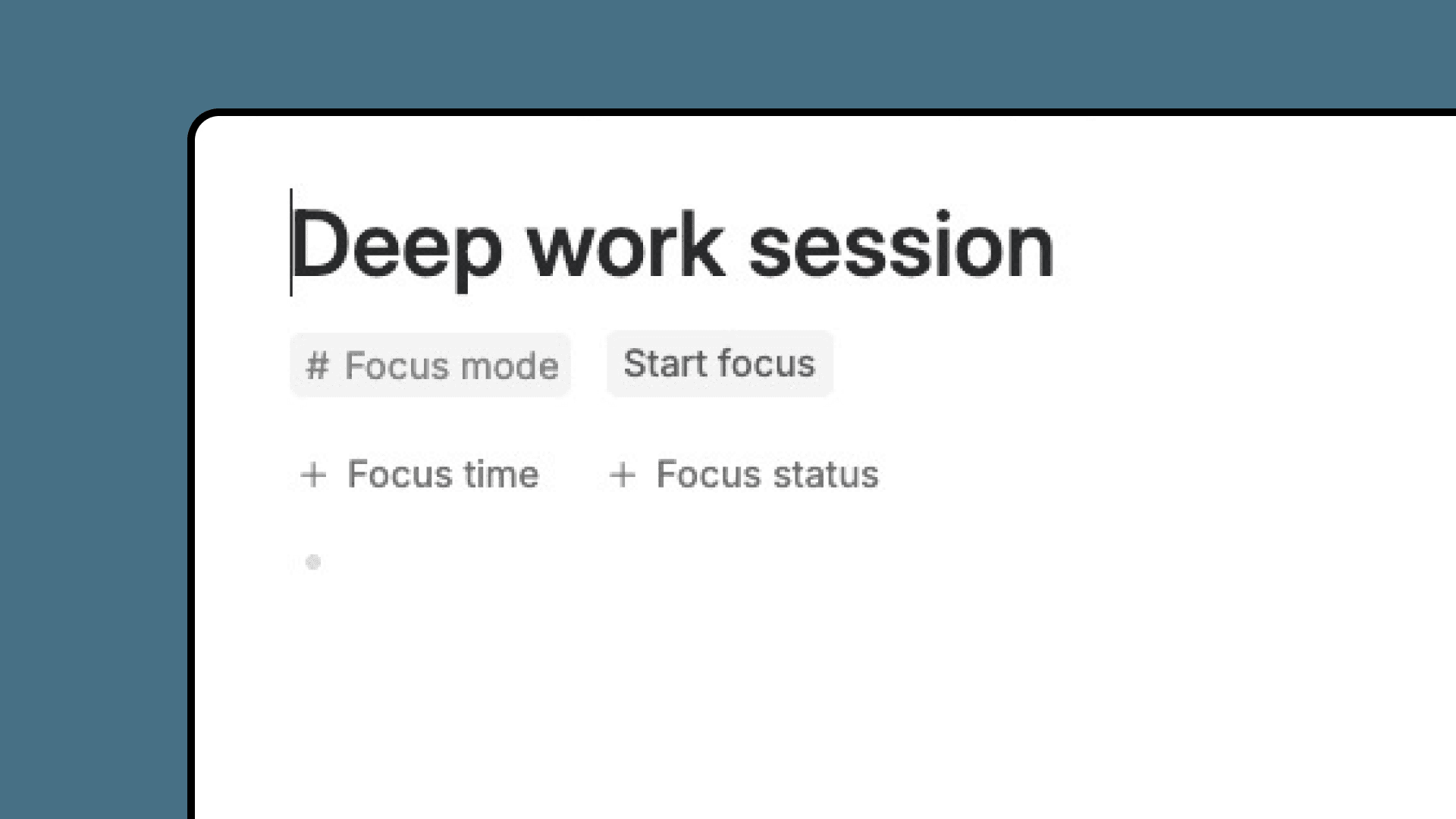
Focus modeEnter focus mode on any node. Your workspace transforms to help you concentrate. When you're done, exit focus mode and see exactly how long you focused. Build a record of deep work across all your projects.
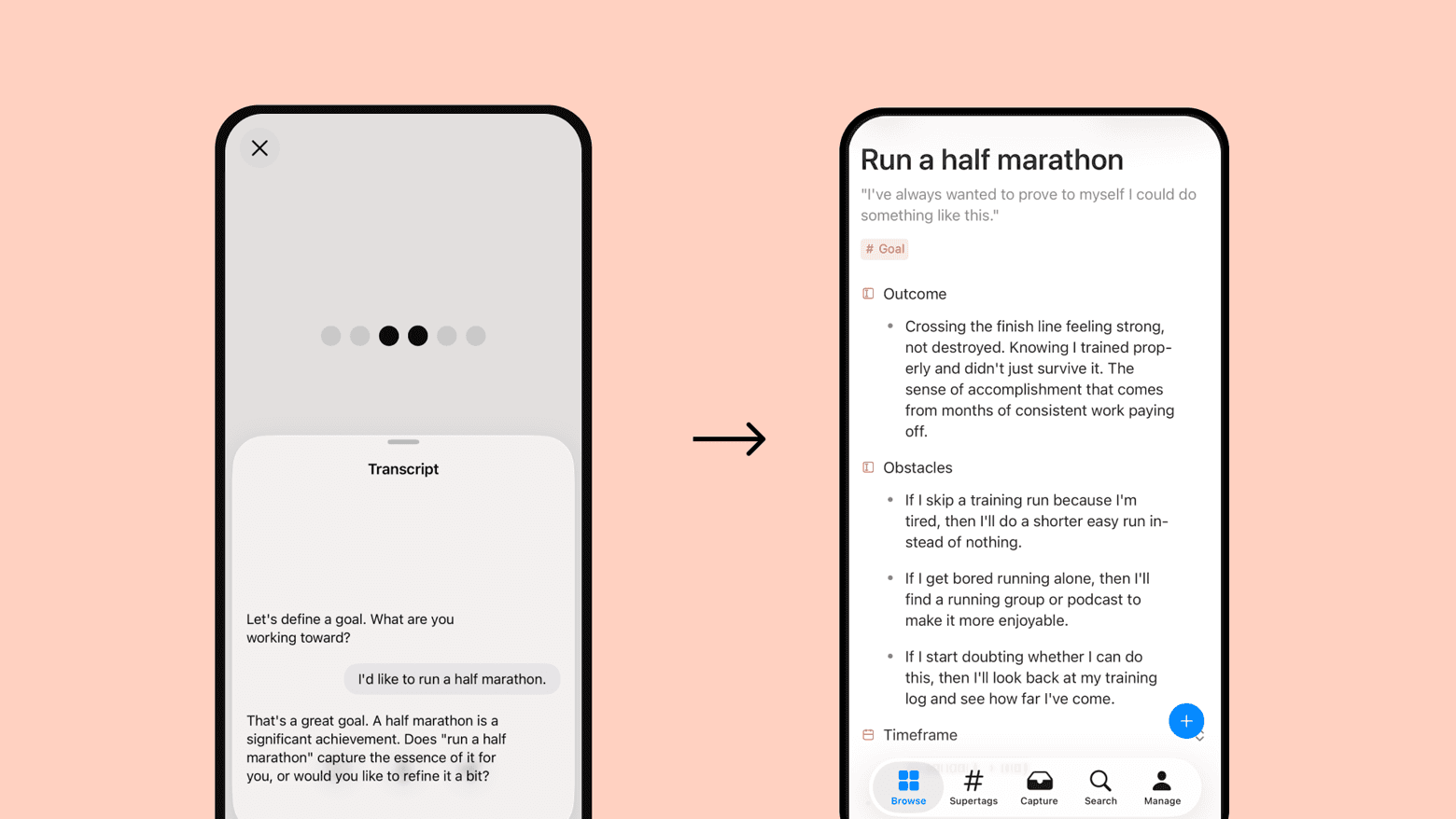
Goals that stickThe Goals template helps you define meaningful goals and stay connected to them over time. Voice-enabled for natural goal capture, with an AI agent to check in on progress, refine obstacle plans, and find your next action.
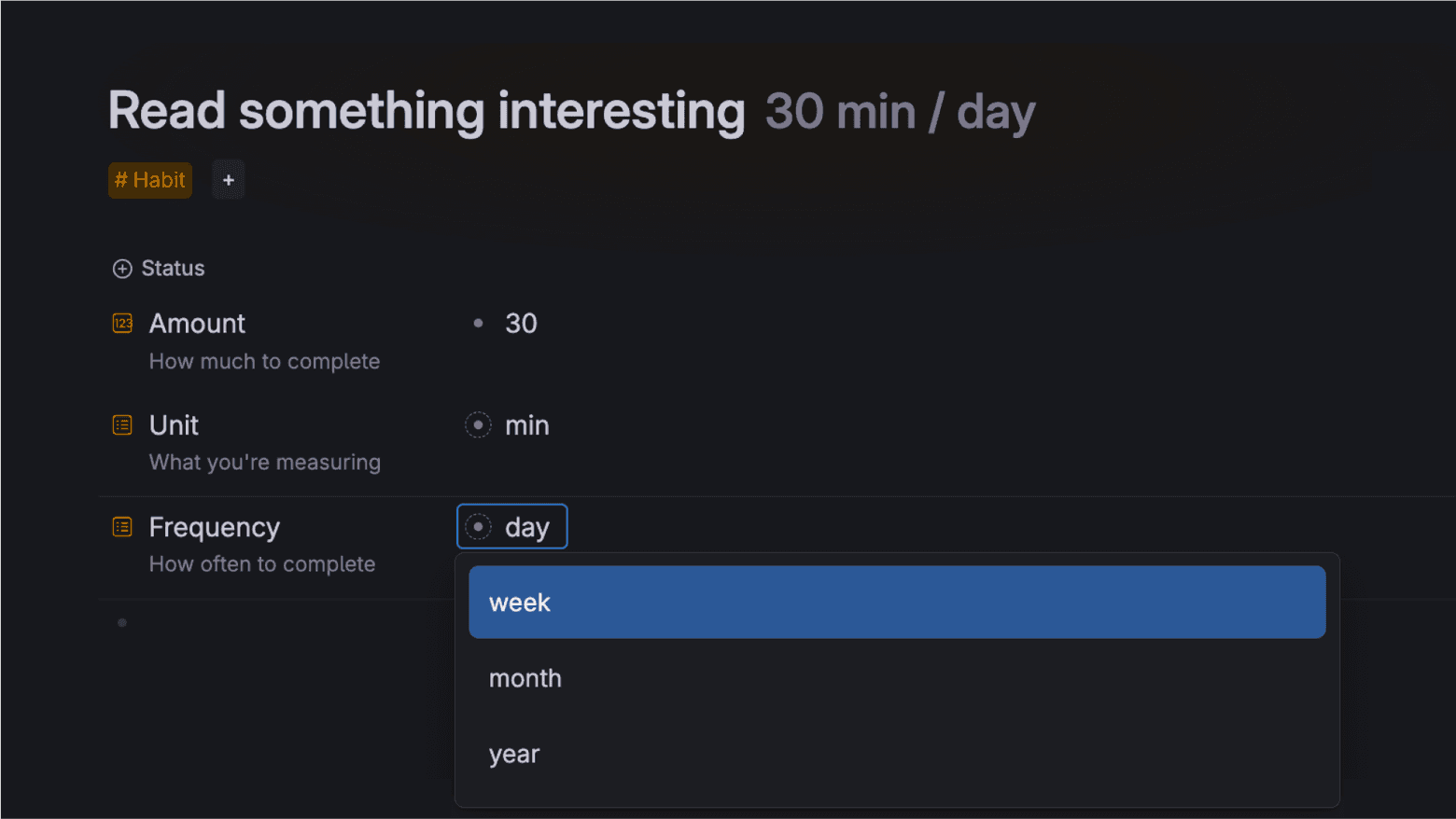
A habit tracker that keeps you consistentMost habit trackers fail because they live outside your normal workflow. Tana Outliner's habit tracking template changes the game by embedding powerful tracking functionality directly into your daily notes. Stop switching between apps and start building consistent habits.
More features
What's new
See all- NewTimezones. Dates can carry a timezone, with a preview of the converted time. Set a display timezone in your preferences.
- NewHide empty groups. Grouped lists and cards have a Hide empty groups option.
- ImprovedGrouped views. Expanded groups show their row counts. Switching off a single group, such as the "not set" group, keeps new values included; the option is now called "Auto-include new values". Mixed-date groups follow planning periods: each week's daily commitments come before its week-wide commitments, and month and year summaries follow their finer groups.
- ImprovedUndo. Each command undoes as one step, and a failed local edit rolls back cleanly.
- NewClaude Haiku 5.5. Claude Haiku 5.5 is available with thinking and effort controls. Existing Haiku 4.5 selections now use Haiku 5.5 with thinking off.
- ImprovedHelp docs search. Help docs search uses the same current docs as AI help chat.